
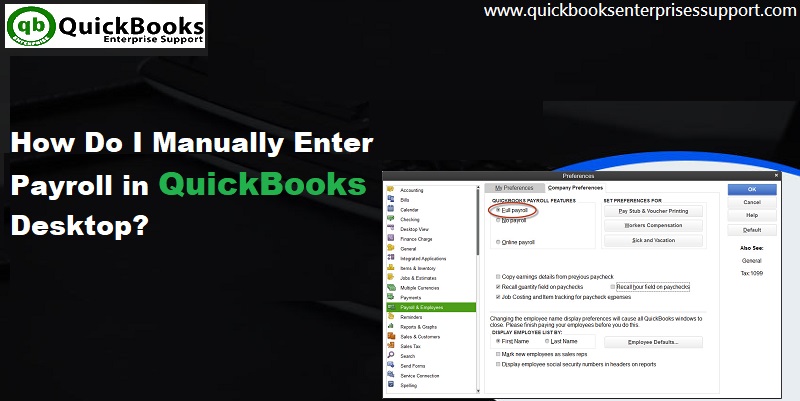
Often small businesses try to maintain QuickBooks manual payroll, whether for one person or more than one. This feature enables the user to track amounts and much more. If you are also seeking for some assistance to turn on manual payroll in QuickBooks, then we are here with this article that will help you in turning on manual payroll in QuickBooks desktop without any sort of technical glitch.
To know more, make sure to stick around till the end. Or in case you do not want to perform the steps manually, then you can simply contact our team professionals at +1 (855) 666-0469 and let them carry out the necessary procedure on your behalf. Ring up to our team professionals, and our team will provide you with immediate technical assistance.
You might see also: Reset Password for QuickBooks Admin and other users
What is Manual Payroll in QuickBooks?
Before digging in deep and exploring the steps, it is better to first get a brief about what manual payroll actually is. Basically, manual payroll in QuickBooks Desktop allows the user to track payroll without subscribing to a paid payroll service from Intuit. The user can create and record paychecks, track payroll items, and manage payroll liabilities all within QuickBooks.
However, it should be noted that when using manual payroll, QuickBooks will insert a zero amount for each payroll item associated with a tax. The user will need to calculate all the payroll taxes on their own and enter them manually. QuickBooks will not calculate the taxes automatically without a payroll subscription.
Not just that, the user will also be responsible for filing all the payroll tax forms themselves. So manual payroll is best suited for small businesses or individuals who have a good understanding of payroll taxes and do not want to pay for a payroll subscription.
When Should You Use Manual Payroll in QuickBooks?
The user might want to use manual payroll in the following situations:
- You are a small business owner with just one or a few employees and want to save on payroll subscription costs
- You have canceled your existing QuickBooks payroll subscription and still want to track payroll in QuickBooks
- You want to enter prior year payroll data into QuickBooks for record-keeping purposes
- You are comfortable calculating payroll taxes on your own and filing the forms manually
- You just want to track the amounts and basic payroll data without using the full payroll service
Important Points Before You Start
- Make sure to update your version of QuickBooks to the latest release before setting up manual payroll. This ensures you have all the latest fixes and improvements
- Manual payroll is available in QuickBooks Desktop Pro Plus, Premier Plus, and Enterprise versions
- When manual payroll is enabled, QuickBooks will enter zero for each tax-related payroll item. The user must enter the correct tax amounts manually
- The user will be responsible for calculating federal, state, and local payroll taxes on their own
- The user will also need to file all payroll tax forms themselves — QuickBooks will not do this automatically
- Make sure your internet connection is disconnected before searching for the manual payroll option in some older versions. This helps QuickBooks display the local help topic instead of directing to an online page
Steps to Enable Manual Payroll in QuickBooks Desktop
Method 1: Using Preferences (Recommended)
This is the most straightforward method to turn on manual payroll in QuickBooks Desktop.
- Open QuickBooks Desktop and sign in to the company file
- From the Edit dropdown menu, select Preferences
- On the left panel, click on Payroll and Employees
- Then tap the Company Preferences tab
- In the QuickBooks Desktop Payroll Features section, select the Full Payroll radio button
- Also check the Manual Payroll checkbox
- In the Get Payday Peace of Mind window, click Next
- Then click Activate in the confirmation screen
- The last step is to click OK to close the Preferences window
The user can now run payroll manually in QuickBooks Desktop.
Method 2: Using QuickBooks Help Search (For Older Versions)
At times, especially in older versions of QuickBooks, the manual payroll option might be grayed out in the Preferences window. In that case, the user can follow this method:
- First, make sure your computer is offline or is not connected to the internet
- Open QuickBooks Desktop
- Click on Help at the top and then select QuickBooks Desktop Help or press F1 on your keyboard
- In the search field, type manual payroll and press Enter on your keyboard
- Select the topic Calculate Payroll Manually (without a subscription to QuickBooks Payroll)
- Under Set your company file to use the manual payroll calculations setting, click on the manual payroll calculations link
- Select the Set my company file to use manual calculations link
- When your company file is set up for manual payroll computation, QuickBooks inserts a zero amount for each payroll item associated with a tax
- The last step is to close and reopen QuickBooks Desktop
Steps to enable Manual payroll in QuickBooks
The most important point is that the QuickBooks software itself enables the payroll feature. But if in case you wish to turn off the feature, then you can follow the manual process.
- At first, you are required to select the preferences tab
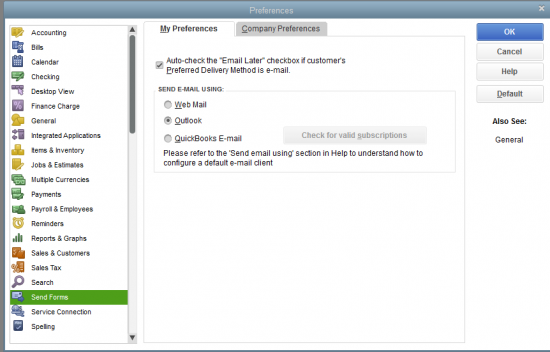
- Then, from the edit menu click on the payroll and employee option on the left panel
- The next step is to click on the company preferences tab and select the no payroll
- This will help the user to disable the payroll feature
- Now to view the payroll item list, the user is suggested to choose manage payroll items from the employees menu and then select view/edit payroll item list.
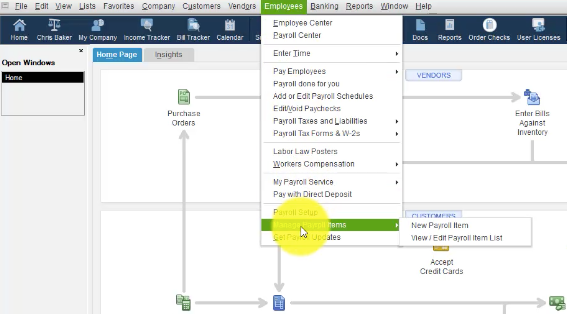
- A payroll list looks like any other list with a name and type associated with it would be seen
- The user is then required to add an item and repeat the steps
- The last step is to select the payroll item and select new tab
Steps for calculating payroll, QuickBooks uses tax tables
In order to calculate the payroll, the below steps should be performed:
- Information related to the company: This includes the company name, address and federal tax ID numbers.
- Knowledge about the employees: This means the general information about the employees and information related to payroll.
- Information about the payroll items: This includes company expenses related to payroll.
- Tax tables for federal, state, and local withholdings.
QuickBooks accounting software generally maintains a list of factors that affect the total amount on a payroll check. It also contains every expense of the company which is related to the payroll, also named as payroll item list. For compensating, there are payroll items, taxes, other additions, and deductions, and employer paid expenses. QuickBooks also adds some items to the list for the user, and one can also add others according to the needs. For some common payroll items, like compensation and benefits, QuickBooks offers extra assistance, so that one can set them up. QuickBooks also tracks the payroll liabilities in the payroll liabilities account and the payroll expenses in the payroll expenses in the payroll expenses account.
Read also: How to Set up QuickBooks Workforce for your QuickBooks Desktop?
Setting the payroll schedules
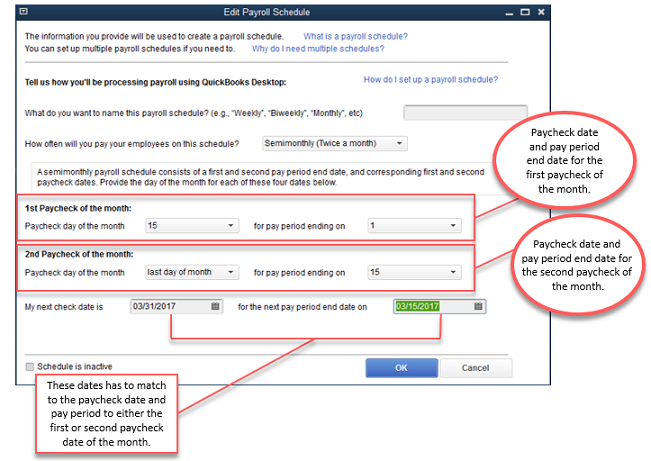
You can simply set up payroll schedules to group employees with the same pay frequency be it daily, semi-monthly, bi-weekly, or monthly. It is up to the user, that how often they pay the employees or on which date their paycheck is due, and which day the user wishes to run payroll. QuickBooks usually calculates the upcoming payroll schedule, so that one can pay the employees without any delay. The user is supposed to set up the payroll schedule one time, and assign the payroll schedule to the consulting employees, and then QuickBooks will calculate the due date for each upcoming pay period.
Writing check for payroll taxes
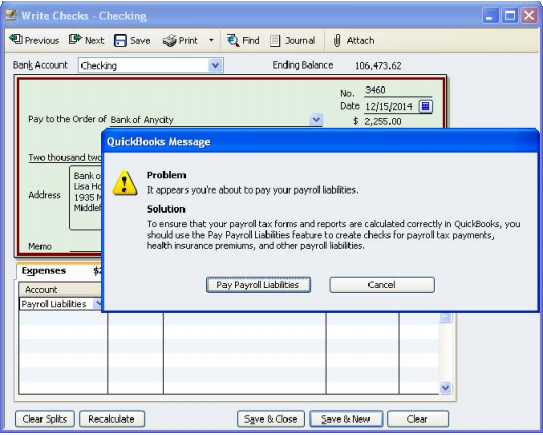
QuickBooks suggests the user for setting up scheduled tax payments for payroll taxes. One can make an unscheduled tax payment, in case an active QuickBooks payroll subscription isn’t available, then a payroll tax present that isn’t set up as a scheduled payment, or an adjustment to payroll tax has to be made. For depositing payroll taxes with the deposit institution, one must make use of the liability check window to fill out a QuickBooks check.
How to Run Payroll Manually in QuickBooks Desktop
After enabling manual payroll, here is how to run it:
- Go to the Employees menu and select Pay Employees
- Choose Scheduled Payroll or Unscheduled Payroll
- Select the pay period and the employees to pay
- Click on Open Paycheck Detail for each employee
- Enter the earnings, hours, and any deductions manually
- QuickBooks will insert zero for all tax fields — the user must manually enter the correct tax amounts
- After entering all the details, click Save and Close
- Review all the paychecks in the Review and Create Paychecks window
- The last step is to click Create Paychecks and print them or record them as direct deposits
Common Issues With Manual Payroll in QuickBooks
At times, users face a few issues while setting up manual payroll. Here are the most common ones:
- Manual payroll option is grayed out — This usually happens when there is an active payroll subscription. The user needs to first remove the service key before the manual payroll option becomes available. Also try disconnecting from the internet and using the Help search method described in Method 2
- Payroll taxes not calculating — This is expected in manual payroll mode. QuickBooks enters zero for all tax fields. The user must calculate and enter the correct tax amounts manually
- Payroll liabilities showing incorrect amounts — Double-check all the manual entries for each paycheck. Also run a Verify Data and Rebuild Data from File and Utilities to fix any data issues
- Cannot find the manual payroll option — Make sure QuickBooks is updated to the latest release. Also try the Help search method instead of using the Preferences window
Conclusion
By now, you might be well versed with the process to successfully turn on the manual payroll in QuickBooks desktop. However, if you are unable to perform the steps for some reason, or in case if you need any sort of technical assistance, then in that case contact our customer support team professionals. Our experts will ensure to provide you with immediate support services.
Frequently Asked Questions
Q. What is the difference between manual payroll and a payroll subscription in QuickBooks?
With a payroll subscription, QuickBooks automatically calculates all federal, state, and local payroll taxes. With manual payroll, the user must calculate and enter all tax amounts manually. QuickBooks inserts zero for all tax fields in manual mode.
Q. Is manual payroll free in QuickBooks Desktop?
Yes. Manual payroll does not require a paid subscription. The user can track payroll and create paychecks without paying for the QuickBooks Payroll service.
Q. Can I switch from manual payroll to a subscription later?
Yes. The user can purchase a QuickBooks Payroll subscription at any time and activate it. Once activated, QuickBooks will start calculating taxes automatically.
Q. Is manual payroll available in QuickBooks Online?
No. Manual payroll is a QuickBooks Desktop-only feature. QuickBooks Online requires a payroll subscription to process payroll.
Q. My manual payroll option is grayed out. What should I do?
Disconnect your internet connection and use the Help search method to find the manual payroll settings. Also check if there is an active payroll subscription or service key that needs to be removed first.
More Resources:
How to fix QuickBooks online login problems on chrome?
Fix QuickBooks Cannot Convert your Windows File to a Mac File Problem