
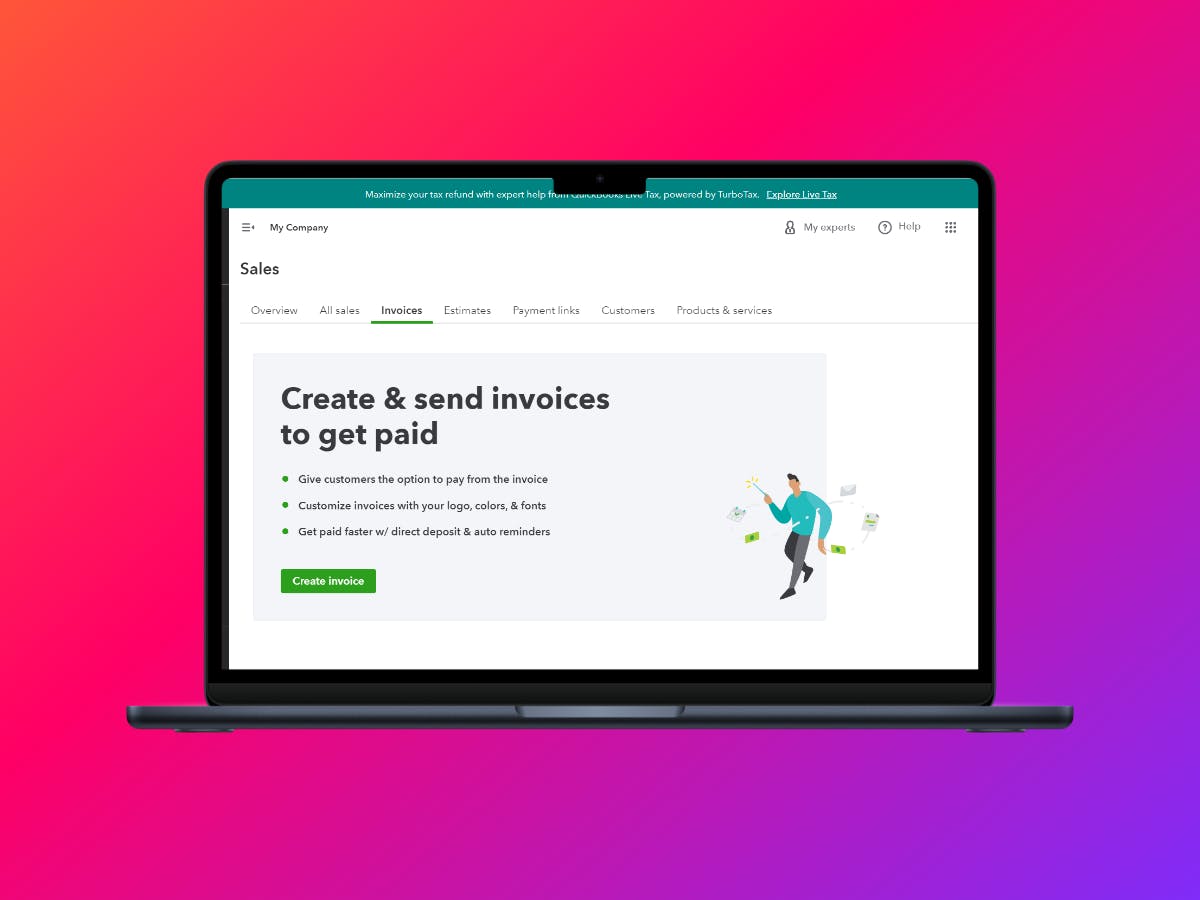
QuickBooks is a helpful tool for managing money in a business. One important thing it does is handle invoices, which are like bills for the stuff you sell. This guide will walk you through how to create and send invoices easily using QuickBooks—even if you’re new to it!
What is QuickBooks Online Invoice?
In QuickBooks, online invoices are just like digital bills that you send to customers after they buy something from you. These invoices include important details like who did the buying, what items or services were purchased, the total amount, and when payment is due. The best part?You can send them quickly, directly to the customer’s inbox no matter where they are.
Invoice Sample
(To visualize, QuickBooks usually provides a default layout, but you can customize your invoice template to match your business branding. Look for examples in the “Sales” section of your QuickBooks account.)

Why Create and Send Particular Invoices in QuickBooks?
It’s smart to make special invoices for every customer or transaction in QuickBooks. That way, you avoid mistakes, and your business appears more professional. For example, itemizing what a job costs or clearly listing all items purchased helps both you and your customer understand the whole transaction.
Also Read: How to View Profit and Loss Report in QuickBooks?
How to Create and Send Particular Invoices in QuickBooks Desktop
Steps to Convert an Estimate into an Invoice
If you gave someone an estimate and they agreed to it, you can turn that estimate into an invoice with just a few clicks. Here’s what to do:
- Go to the “Sales” menu and pick “Estimates.”
- Find the estimate you want, then click on it.
- Double-check that everything’s accurate on the estimate.
- Hit “Create invoice.”
- Change anything on the invoice if needed—maybe add a new item, or correct a price.
- Make sure the customer’s info and payment terms are correct.
- Click “Save and send” if you want to send it right now or “Save and close” if you’d rather send it later.

Steps to Create an Invoice in QuickBooks
Starting from scratch? Don’t worry, making an invoice in QuickBooks is a breeze:
- Go to the “Sales” menu and pick “Invoices.”
- Click on “New invoice.”
- Choose the customer you’re billing.
- Add each of the items or services to this invoice—be as detailed as you want.
- Fill in the payment terms and the due date.
- Look over the invoice for any mistakes or typos.
- Click “Save and send” to email it at once, or “Save and close” to finish later.

Steps to Send an Invoice in QuickBooks Online
Sending an invoice in QuickBooks Online is also really easy:
- Open the invoice you want to send from the “Sales” menu.
- Double-check all the details.
- Click “Save and send.”
- Write a personalized note if you’d like.
- Check that you have your customer’s correct email.
- Hit “Send” to deliver it.

Creating and Sending Multiple Invoices in QuickBooks Online
QuickBooks Online lets you save time by sending multiple invoices at once. Here’s how:
- Go to “Sales” and click on “Invoices.”
- Pick “Batch actions” and then select “Create invoices.”
- Customize each invoice so they match each customer’s needs.
- Click “Save and send” to email them all out or “Save and close” if you want to check them over later.

Adding Payment Options to Invoices
To help your customers pay you faster, give them payment choices right on your invoices:
- Go to “Settings” and click “Account and settings.”
- Pick the “Sales” tab.
- Click on “Sales form content.”
- Switch on “Show payment options on invoices.”
- Choose which payment methods you want to accept (like credit cards, bank transfers, etc.).
- Click “Save” to lock in your changes.

Sending the Same Invoice to Multiple Customers
If you need to send the same invoice to several customers, QuickBooks makes it easy:
- Open the invoice you want to send from the “Sales” menu.
- Click “More” and choose “Copy link.”
- Paste that link into your emails to each customer.
- Send out the emails, and everyone receives the same invoice.

Conclusion
Sending invoices in QuickBooks is crucial for keeping track of the money your business brings in. By following these simple steps, you’ll be able to make and send invoices easily—ensuring nothing slips through the cracks and helping your business run like clockwork. Embrace QuickBooks to handle your invoicing and watch your business life get a whole lot smoother!
Need help importing, exporting, or bulk deleting invoices in QuickBooks? Try out TranSync Pro, your one-stop solution to perform all bulk operations in QuickBooks.