

Insight into QuickBooks Payroll tax tables
Being a QuickBooks Payroll user, it is important to be aware with the QuickBooks Payroll tax tables. To provide the users with the proper knowledge of QuickBooks Payroll tax tables, we have come up with this article. At the end of this article, the reader would be well versed in downloading, installing, and verifying QuickBooks Payroll Tax Table. Therefore, stick to the article until the end.
However, for any query associated with QuickBooks Payroll tax tables, you can simply consult our Payroll customer support team at +1 (855) 666-0469.
Understand QuickBooks Payroll Tax Tables
Before digging in deep and exploring the steps to download, install, and verify QuickBooks Payroll Tax Tables, it is better to understand what it actually means. To define Payroll tax table, it can be stated that it is a chart that has different columns. It assists in finding out the correct taxes to be withheld from the employee's paycheck.
It should be noted that the withholding taxes are generally affected by numerous factors. Just like the income amount, the marital status of the worker, and also the payment schedule, like bi-weekly, monthly, etc.
Now why does this matter so much? Well, if you are running payroll with an outdated tax table, your calculations will simply be wrong. This can lead to incorrect paychecks and penalties during tax filing. That is a situation no business owner wants to be in. So keeping the tax table updated is not just recommended — it is quite necessary.
Important Points to Remember
Before downloading, installing, and verifying the QB Payroll Tax Table, the user is required to keep in mind certain factors, such as:
- The user is required to have an active payroll subscription, if they wish to update the tax table.
- It is recommended by Intuit that the user should download the tax table at least within 45 days, or they can update the same every time they make payment to their employees
- The user is required to turn on the automatic updates in QuickBooks Desktop, if they want to receive the payroll tax table updates automatically, the moment the update releases.
- Make sure you are logged in as an Admin user and in Single-user Mode before downloading
- Also make sure you have a stable internet connection before starting the process
- It is always a good idea to backup your QuickBooks company file before making any updates
Note: The user should be on QuickBooks Desktop 2024 or QuickBooks Desktop Enterprise Solutions 24.0 to download the latest tax table update.
What Does the QuickBooks Payroll Tax Table Update?
The payroll tax table update will provide the user with accurate and updated rates and calculations for:
- Supported state and federal tax tables
- Payroll tax forms
- E-file options
- Pay options
Starting from 2025, Intuit has also made a change to how payroll taxes are withdrawn. Payroll taxes will now be withdrawn every time you run payroll or if there is a change in the taxes due. So staying updated on the tax table is more important than ever.
How to Find Out the Version of QuickBooks Payroll Tax Table?
Before downloading the update, it is a good idea to first check what version you are currently on. Here is how to do it:
- Go to the Employees menu in QuickBooks
- After that, select My Payroll Services
- The next step is to click on Tax Table Information
- The first three numbers under "You are using Tax Table version" reflect your current tax table version
Note: As of the latest 2025 update, the tax table version should display as 12134003 or later. If it does not, you are on an older version and need to update right away.
Procedure to download the QuickBooks tax table updates
Undoubtedly, it is essential to download or install the newest available QuickBooks Payroll Tax Table updates, in order to safeguard that the Payroll has precise information. Being a QuickBooks Payroll user, all you need to do is follow certain steps, and you are good to go.
- To begin with, opt for ‘Employees‘ and after that select ‘Get Payroll Updates‘.
- Moving forward, the user is required to select ‘Download entire payroll update‘.
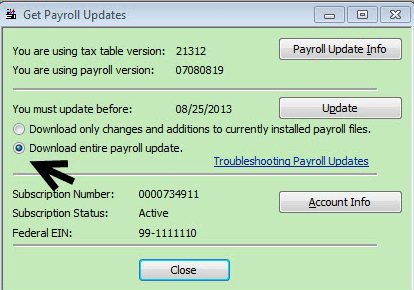
- Tap on ‘Update‘ button
- Once the downloading procedure comes to an end, a pop-up message will appear stating “A new tax table and updates to your payroll tax forms have been installed on your Desktop. Click OK to read about the modification.”
- Considering the prompts, hit ‘OK‘ and you are good to go.
Steps to Install a Payroll Tax Table update from a CD (Disk Delivery Service:)
- To start with, the user needs to insert the ‘Payroll Update CD‘.
- Once done with that, open the ‘Get Payroll Updates‘ option.
- QuickBooks Desktop Pro and Premier: The user is required to choose the ‘Employees‘ option and after that the option stating ‘get payroll updates‘.
- Moving forward, if the user is prompted to locate the ‘update.dat‘ or ‘data file‘ in the ‘Install Payroll Update window‘, then he/she is required to take the necessary actions and respond to the prompts.
- Once you have completed that, tap on ‘Browse‘.
- Tap to choose CD drive from the ‘Look in the drop-down arrow‘, in the install from window.
- Now, either select the ‘date or update3.dat‘ from the ‘Payroll Update Disk‘ and after that click on ‘Open‘ to proceed.
- The next step is to choose between the ‘update.dat or update3.dat‘.
- Now, hit the ‘Open‘ option.
- After that, the user is required to move on to the ‘Payroll Update Window‘, and then tap on ‘OK‘.
Note: In case the user receives a pop-up message displayed on the screen which says “File Not Found” go through your CD drive by following the below-enumerated steps:
- Firstly, the user is required to ‘close‘ the QuickBooks Desktop and after that hit the ‘Start Button‘, once done with that, select ‘My Computer‘.
- Moving ahead, right-click the ‘CD drive‘ and after that select the option “If you cannot see the files, test the CD on a second desktop.” In case the files are visible on the second desktop, then there might be some issue with the hardware on the first desktop.
Whereas, if the user is unable to see the file on both the desktops, then he/she is required to order a new payroll update disk.
How to verify QuickBooks Payroll Tax Tables:
Now comes the verification process:
- The user is required to authenticate in the install confirmation window that the user is installing the accurate location
- Also confirm that the tax table versions in the current and new fields are precise
- The next step is to click when the update is complete, or a message appears stating "A new tax table has been installed on your desktop"
- The next step is to click OK in order to read about the modification
- The last step of the verification process is that in case the tax table version has not modified, a pop-up message will appear on the screen stating that "You have successfully installed payroll update"
How to Download the latest payroll tax table update?
The payroll tax table update will provide the user with the accurate and updated rates and calculations for:
- E-file options
- Supported provincial and federal tax tables
- Payroll tax forms
How to find out the version of QuickBooks?
- Included in the new update: July 2018 payroll tax tables updated
- Current Version: Version 108
- Release date: June 28, 2018
- Effective date: July 1, 2018, to December 31, 2018
To check the version of QuickBooks, the user is required to follow the following steps:
- The first step is to go to the ‘Employees menu‘ in QuickBooks, after that select the ‘My Payroll Services‘.
- In the next step, the user is required to select the ‘Tax table information‘.
- The first three number reflects the tax table version in “You are using Tax table version”.
Note: The user should be QuickBooks 2024 or QuickBooks Desktop 2024 or QuickBooks Desktop Enterprise Solution 24.0 to download the tax table update.
Check Out the Current and Historical TD1, CPP & EI Amounts
TD1 Amounts — Basic Personal Amounts by Province/Territory
| 1/1/2026 | 1/1/2025 | 1/1/2024 | 1/1/2023 | |
|---|---|---|---|---|
| Tax Table Version | Latest | Prior | Prior | Prior |
| Federal | 16,452 | 16,129 | 15,705 | 15,000 |
| AB | 22,769 | 21,003 | 21,003 | 21,003 |
| BC | 13,216 | 11,981 | 11,981 | 11,302 |
| MB | 15,780 | 15,780 | 15,780 | 15,780 |
| NB | 13,664 | 12,458 | 12,458 | 11,720 |
| NL | 11,188 | 10,818 | 10,818 | 10,818 |
| NT | 16,593 | 16,593 | 15,609 | 15,609 |
| NU | 17,925 | 17,925 | 17,925 | 16,862 |
| ON | 12,989 | 11,865 | 11,865 | 11,141 |
| PE | 15,000 | 12,000 | 12,000 | 10,000 |
| QC | 17,183 | 17,183 | 16,143 | 15,532 |
| SK | 20,381 | 17,661 | 17,661 | 16,615 |
| YT | 16,452 | 16,129 | 15,705 | 15,000 |
| ZZ (employees outside Canada) | 0 | 0 | 0 | 0 |
Note: The federal basic personal amount for 2025 is $16,129, and for 2026 it has increased to $16,452.
Canada Pension Plan (CPP) — Outside Québec
| 1/1/2026 | 1/1/2025 | 1/1/2024 | 1/1/2023 | |
|---|---|---|---|---|
| Maximum Pensionable Earnings (YMPE) | 74,600 | 71,300 | 68,500 | 66,600 |
| Basic Exemption | 3,500 | 3,500 | 3,500 | 3,500 |
| Contribution Rate (EE) | 5.95% | 5.95% | 5.95% | 5.95% |
| Contribution Rate (ER) | 5.95% | 5.95% | 5.95% | 5.95% |
| Maximum Contribution (EE) | 4,230.45 | 4,034.10 | 3,867.50 | 3,754.45 |
| Maximum Contribution (ER) | 4,230.45 | 4,034.10 | 3,867.50 | 3,754.45 |
CPP2 (Second Additional Contribution) — introduced January 1, 2024
| 1/1/2026 | 1/1/2025 | 1/1/2024 | |
|---|---|---|---|
| YAMPE (Second Earnings Ceiling) | 85,000 | 81,200 | 73,200 |
| CPP2 Contribution Rate (EE) | 4.00% | 4.00% | 4.00% |
| CPP2 Contribution Rate (ER) | 4.00% | 4.00% | 4.00% |
| Maximum CPP2 Contribution (EE) | 416.00 | 396.00 | 188.00 |
| Maximum CPP2 Contribution (ER) | 416.00 | 396.00 | 188.00 |
Note: Starting in 2024, a higher second earnings ceiling was implemented to determine second additional CPP contributions (CPP2). As a result, for 2026, pensionable earnings between $74,600 and $85,000 are subject to CPP2 contributions. Contributors are not required or permitted to make contributions on pensionable earnings above $85,000.
EI Amounts — Employment Insurance Outside Québec
| 1/1/2026 | 1/1/2025 | 1/1/2024 | 1/1/2023 | |
|---|---|---|---|---|
| Maximum Insurable Earnings | 68,900 | 65,700 | 63,200 | 61,500 |
| Premium EI Rate (EE) | 1.63% | 1.64% | 1.66% | 1.63% |
| Premium EI Rate (ER) (1.4 x EE) | 2.28% | 2.30% | 2.32% | 2.28% |
| Maximum Premium (EE) | 1,123.07 | 1,077.48 | 1,049.12 | 1,002.45 |
| Maximum Premium (ER) (1.4 x EE) | 1,572.30 | 1,508.47 | 1,468.77 | 1,403.43 |
Note: The 2026 EI premium rate is set at $1.63 per $100 of insurable earnings for employees and $2.28 for employers. The maximum insurable earnings for 2026 increased to $68,900 from $65,700 in 2025.
Québec Pension Plan (QPP)
| 1/1/2026 | 1/1/2025 | 1/1/2024 | 1/1/2023 | |
|---|---|---|---|---|
| Maximum Pensionable Earnings (YMPE) | 74,600 | 71,300 | 68,500 | 66,600 |
| Basic Exemption | 3,500 | 3,500 | 3,500 | 3,500 |
| Contribution Rate (EE) | 5.40% | 5.40% | 5.40% | 5.40% |
| Contribution Rate (ER) | 5.40% | 5.40% | 5.40% | 5.40% |
| Maximum Contribution (EE) | 3,827.40 | 3,652.20 | 3,509.40 | 3,458.40 |
| Maximum Contribution (ER) | 3,827.40 | 3,652.20 | 3,509.40 | 3,458.40 |
| YAMPE (QPP2 Second Ceiling) | 85,000 | 81,200 | 73,200 | N/A |
| QPP2 Contribution Rate | 4.00% | 4.00% | 4.00% | N/A |
| Maximum QPP2 Contribution (EE) | 416.00 | 396.00 | 188.00 | N/A |
Employment Insurance (EI) — Québec Only
| 1/1/2026 | 1/1/2025 | 1/1/2024 | 1/1/2023 | |
|---|---|---|---|---|
| Maximum Insurable Earnings | 68,900 | 65,700 | 63,200 | 61,500 |
| Premium EI Rate (EE) | 1.30% | 1.31% | 1.32% | 1.27% |
| Premium EI Rate (ER) (1.4 x EE) | 1.82% | 1.83% | 1.85% | 1.78% |
| Maximum Premium (EE) | 895.70 | 860.67 | 834.24 | 780.05 |
| Maximum Premium (ER) (1.4 x EE) | 1,253.98 | 1,204.94 | 1,167.94 | 1,092.07 |
Note: EI premium rates differ in Québec because the province administers its own parental insurance plan, which is financed by Québec workers and employers.
Québec Parental Insurance Plan (QPIP)
| 1/1/2026 | 1/1/2025 | 1/1/2024 | 1/1/2023 | |
|---|---|---|---|---|
| Maximum Insurable Earnings | 98,000 | 94,000 | 91,000 | 88,000 |
| Contribution Rate (EE) | 0.494% | 0.494% | 0.494% | 0.494% |
| Contribution Rate (ER) | 0.692% | 0.692% | 0.692% | 0.692% |
| Maximum Contribution (EE) | 484.12 | 464.36 | 449.54 | 434.72 |
| Maximum Contribution (ER) | 678.16 | 650.48 | 629.72 | 608.96 |
Important note on these tables: The data above is sourced from CRA official publications and reflects the most current rates available as of June 2026. If you have ever manually updated the TD1 amounts for an employee, the new tax table will not override any previously adjusted amounts. You will need to manually update the TD1 amounts going forward. QuickBooks Desktop will automatically update TD1 amounts only for those employees with the basic amounts for the previous tax tables.
Fix QuickBooks Payroll update issues:
- If the TD1 amounts are not updated even after installing the latest tax table update, the user is required to perform the following checks:The user is required to ‘confirm the tax table effective date‘, whether it is on or after the date.
- After downloading the product update that contains the new tax tables, the user is required to start with payroll, or open and close the QuickBooks Desktop for the TD1 amounts to update.
- If in case the user has ever manually updated the TD1 amounts for an employee, the new tax table would not dominate any previously adjusted amounts.
- Employees set up over the basic TD1 amounts? ‘Yes‘, or ‘No‘
- The reason is that the QuickBooks Desktop will update TD1 amounts on its own, only for the employees with the basic amounts for the previous tax tables.
Payroll tax table is now out of date: One of the most commonly encountered error
When the user opens the payroll tax table on the computer, he/she might encounter the pop-up stating the Payroll tax table is now out of date. It should be noted that any of the calculations that the users perform using this tax table will be either zero or will show as $0.00. There can be various reasons behind this error, a few of which are listed below:
- The very first reason can be that the QuickBooks Desktop is not updated to the latest payroll tax table release.
- Or in case the user is using QuickBooks in a multi-user network environment, this error might be encountered.
- The last reason can be that not all the versions of QuickBooks located within the network might have been updated to the latest tax table.
How to rectify this commonly encountered error?
- The very first thing is to analyze the QuickBooks Desktop and check whether it is using the latest product update or not. The next step is to check whether all the versions are located on the network or not, especially in the case you have the multi-user network.
- The next thing the user has to do is to equate the product release number of the currently installed product with the product update page at the time when the user is working in QuickBooks. After that, the user is required to press F2 key to view the release reference number.
- Lastly, if the user hasn’t updated its product to the latest release, it would be better to update it first, in order to resolve the error. The user can get rid of the error and backup the file first, by clean uninstall and reinstall of QuickBooks Desktop.
We conclude this article with the hope that it might help you to download the latest QuickBooks Payroll tax table and also get a better insight into the same. After reading this article, you might be able to deal with the errors that you may stumble upon and many other related issues.
However, in case of any difficulty, our support team is there to guide you. You can consult our team of experts at our toll-free number +1 (855) 666-0469 at any time.
Frequently Asked Questions
Q. Can I use QuickBooks payroll tax tables without an active subscription?
No. QuickBooks tax tables cannot be downloaded or used without an active payroll subscription.
Q. How often should I update the payroll tax table?
Intuit recommends downloading the update at least every 45 days. Or better, update it every time you run payroll.
Q. Which QuickBooks version supports the latest tax table update?
The user should be on QuickBooks Desktop 2024 or QuickBooks Desktop Enterprise Solutions 24.0.
Q. What happens if I manually updated TD1 amounts for an employee?
The new tax table will not override those amounts. The user will have to manually update them going forward.
Q. My tax table version did not change after the update. What should I do?
Check the effective date of the update. If you downloaded it before the effective date, the amounts will not show until that date passes. Also restart QuickBooks after the download.
Few other helpful articles:
How to solve QuickBooks Error 15106?