
QuickBooks Desktop Enterprise software enables users to use various accounting tools. Previously, these accounting tools were only available in the QuickBooks Enterprise Accountant version and were employed to simplify an assortment of crucial accounting tasks. Now they are available across the Enterprise editions and can be accessed by any authorized user.
Here, in this article, we are going to guide you on how you and other users can use the accounting tools in QuickBooks Enterprise. By the end of this article, you can expect to have a full understanding of how to access the accounting tools in the QuickBooks Enterprise software. However, if you are looking for technical assistance, you can call our team at +1 (855) 666-0469 to get instant help.
Read Also: What are the features and benefits of QuickBooks Mac 2019?
What are the QuickBooks Desktop Enterprise Features?
Following are the QuickBooks enterprise solutions features you can enjoy!
Increased Capacity
- Managing around 30 users on the system at the same time
- Crafting complex chart of accounts with up to 100,000 accounts
- Keep data for around 1 million customer, employees, and vendors combined
- Using 150 pre-configured industry reports and tools to analyze the data
- Support for up to 100,000 classes and 45 custom fields
Enhanced efficiency and flexibility
- Creating custom pick-lists
- Using advanced reporting to access the data and craft any report
- Carry out more activities in multi-user mode
- Scanning inventory bar-codes with mobile devices
- Searching across all lists using the search bar — a feature added in the R11 update of QuickBooks Desktop 2024
- Inventory Turnover Report added in the R7 update of QuickBooks Enterprise 2024
Improved Benefits:
- Now accept credit card payments directly through QuickBooks with preferred rates
- Save an average of 18% on QuickBooks Desktop Payments fees as a Desktop Enterprise customer
- Accept cards, ACH, Apple Pay, and Google Pay
- Unlimited tech support and QuickBooks help
- Data protection with online backup
- Access data regardless of the time and place
See Also: How to Add a Customer, Employee, or Vendor in QuickBooks for Mac?
How to Access the QuickBooks Enterprise Accounting Tools?
Accessing accounting tools in QuickBooks Enterprise can be a cakewalk for those who are familiar with this software. Those who are new to this significant software can follow the below mentioned steps to access the accounting tools.
Note: You should have the latest QuickBooks Desktop Enterprise edition installed on your system before starting.
Steps to follow:-
- Go to Company Menu and select Accounting Tools.
- Select the desired tool, and you are good to go.
Please note that after the tools open, you will have an option to select “How this works” in the upper right of your computer screen to get specific particulars about the use of each tool.
Access the accounting tools in Intuit QuickBooks Desktop Enterprise
Reclassify Transactions in Batch enables the users to find transactions that may have an inaccurate account and categorize them into the correct account. This is one of the most used tools by accountants at year-end to clean up miscategorized transactions in bulk without having to open and edit each one manually.
1. Reclassify Transactions in Batch
Reclassify Transactions in Batch enables the users to find transactions that may have an inaccurate account and categorize them into the correct account. This is one of the most used tools by accountants at year-end to clean up miscategorized transactions in bulk without having to open and edit each one manually.
2. Troubleshoot Prior Account Balance
It is not very rare for the opening balance in a client's record for the assessment time frame to be different from the actual balance from the accountant's or bookkeeper's data for the previous period. This tool demonstrates the differences in the balances and prescribes altering entries to rectify the opening balances.
3. Review List Changes
This is another useful tool in QB Desktop Enterprise. It reports all the changes to the list for the Chart of Accounts, Payroll Items, Item List, and Fixed Asset Items. It also consists of editable review notes for all areas. This makes it easy to keep track of who changed what in the lists without having to run a full audit trail.
4. Write off invoices
This tool can be used to write off several invoices at the same time. The accounting software makes a credit memo for every bill you write off and then adds a reminder about the write-off to both the credit notice and the bill. This saves a lot of time compared to writing off each invoice one by one.
5. Fix Unapplied Customer Payments and Credits
QuickBooks users with this tool can efficiently distinguish and apply payments and credits to open invoices. At times, payments and credits sit unapplied in QuickBooks for a long time without anyone noticing. This tool finds them all and helps the user apply them in one go.
You may also read: How to troubleshoot the QuickBooks error 1712?
6. Clear Up Undeposited Funds Account
A useful tool that enables you to link deposits that are manually created to the suitable payments and clears your Undeposited Funds account. The Undeposited Funds account tends to pile up over time if payments are not properly matched to deposits. This tool cleans it all up quickly.
7. Fix Unapplied Vendor Payments and Credits
A tool that enables users to recognize and apply payments and credits to open bills with ease. Just like the customer payments tool, this one handles the vendor side. It finds all unapplied vendor credits and payments and helps apply them to the right bills.
8. Fix Incorrectly Recorded Sales Tax
Fix Incorrectly Recorded Sales Tax is a tool that distinguishes payments that give off an impression of being sales tax payments, yet were not recorded with the Pay Sales Tax function. This happens when a customer uses a general check to pay Sales Tax. You can change the whole payments or a portion of the payments to Sales Tax Check at once.
9. Compare Balance Sheet and Inventory Valuation
This tool decides if the inventory account on the Balance Sheet and the Inventory Valuation Summary match. It also checks the inventory account and Inventory Valuation Summary when it is opened and shows the results. Any discrepancy between the two is flagged immediately so the user can investigate and fix it.
10. Troubleshoot Inventory
Troubleshoot Inventory is a tool that contains some perspectives on potential inventory issues. By changing which items are shown and the inventory criteria, the user can find the items in the way that best suits the client's organization and afterward zoom in to fix any issues.
Not just that, with the Enhanced Inventory Receiving feature added in QuickBooks Desktop Enterprise 24.0 R15 and later, QuickBooks now creates an inventory offset liability account which keeps item receipts from bills. This makes inventory accounting even more streamlined.
11. Find Incorrectly Paid Payroll Liabilities
This tool reports distinguish and show any payroll tax liabilities that seem to have been paid by regular check instead of through the Pay Liabilities feature. This is a common mistake and can cause issues during tax time. This tool identifies all such instances quickly so the user can correct them.
12. Working Trial Balance
This tool can create a trial balance that incorporates beginning balances, aggregates of transactions and adjustments, and in addition the ending balance. Furthermore, the tool also comprises of a space for comments and notes about the review. This is particularly useful for accountants during the review and audit process.
13. Inventory Turnover Report
This is a newer tool added in the R7 update of QuickBooks Desktop Enterprise 2024. The Inventory Turnover Report shows how efficiently inventory is being sold and replaced over a period of time. It gives the user a clear picture of which items are selling fast and which ones are sitting idle.
- Go to the Reports menu
- Select Inventory
- Click on Inventory Turnover Report
- Set the date range and click Run Report
- The last step is to print, email, or export the report
14. Linked Sales Orders with Purchase Orders
Another new feature added in QuickBooks Desktop Enterprise 2024 is the ability to link sales orders with purchase orders. This makes it easier to track which purchase order fulfils which sales order. Here is how to use it:
- Open the Sales Order you want to link
- Click on Create Purchase Order from the toolbar
- QuickBooks will automatically link the two documents
- The linked purchase order will appear in the sales order for easy reference
- The last step is to save and close
Tips to Get the Most Out of QuickBooks Enterprise Accounting Tools
Here are a few things that can help the user work more effectively with the accounting tools:
- Run the Reclassify Transactions in Batch tool at the end of each quarter to catch any miscategorized transactions early
- Use the Review List Changes tool after any period where multiple users have been active to track unauthorised or accidental list changes
- Use the Working Trial Balance tool during the review process to keep notes and comments alongside the numbers
- Run the Compare Balance Sheet and Inventory Valuation tool at the end of each month to catch discrepancies early
- Use the Write Off Invoices tool at year-end to clean up old unpaid invoices instead of deleting them manually
Read Also: How to create journal entry in QuickBooks desktop?
Winding Up!
I hope you found this blog informative and helpful. For more information and expert advice you may talk to our Intuit certified experts at +1 (855) 666-0469. Feel free to get in touch with our experts by dialing our support phone number. We will be more than happy to help you.
Frequently Asked Questions
Q. Which QuickBooks versions have the accounting tools?
The accounting tools are available in QuickBooks Desktop Enterprise, Enterprise Accountant, and QuickBooks Accountant versions.
Q. How do I access the accounting tools in QuickBooks Enterprise?
Go to the Company menu and select Accounting Tools. Then select the desired tool from the list.
Q. What is the Reclassify Transactions tool used for?
It is used to find transactions that were posted to the wrong account and move them to the correct account in bulk. This is especially useful at year-end.
Q. Can I use the accounting tools without being an admin user?
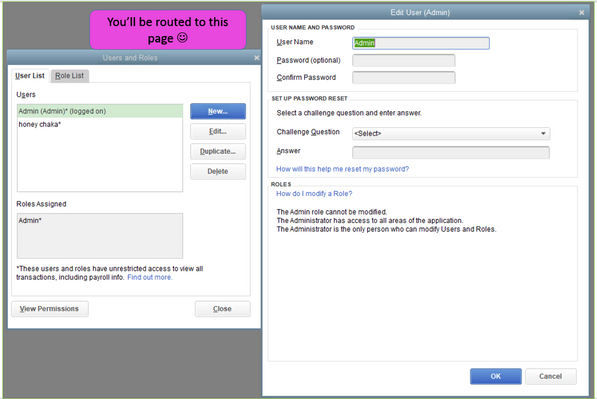
Access to the accounting tools depends on the user permissions set up in QuickBooks. The Admin user can control which users have access to these tools from the Set Up Users and Roles section.
Q. What is the Working Trial Balance tool?
It is a tool that creates a trial balance with beginning balances, transactions, adjustments, and ending balances. It also has space for notes and comments, which makes it useful during the review and audit process.
Similar Articles: