

QuickBooks is a helpful tool for managing your business finances, and one of its key features is the ability to generate a profit and loss report in QuickBooks. These reports give you valuable insights into your business’s financial performance for any period you choose. In this quick guide, we’ll walk through how to generate a profit and loss report in both QuickBooks Desktop and QuickBooks Online.
Generating a Profit & Loss Report in QuickBooks Desktop
Getting your profit and loss report in QuickBooks Desktop is simple. Follow these steps:
- Open QuickBooks Desktop and log in to your company file.
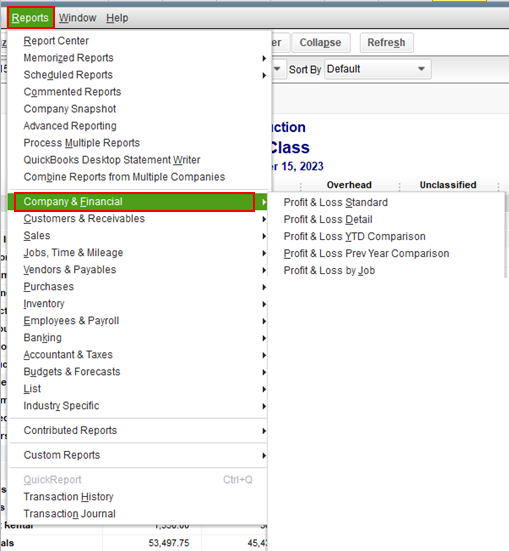
- Go to the Reports menu at the top.
- From the drop-down, select Company & Financial.
- Choose Profit & Loss Standard from the available reports.
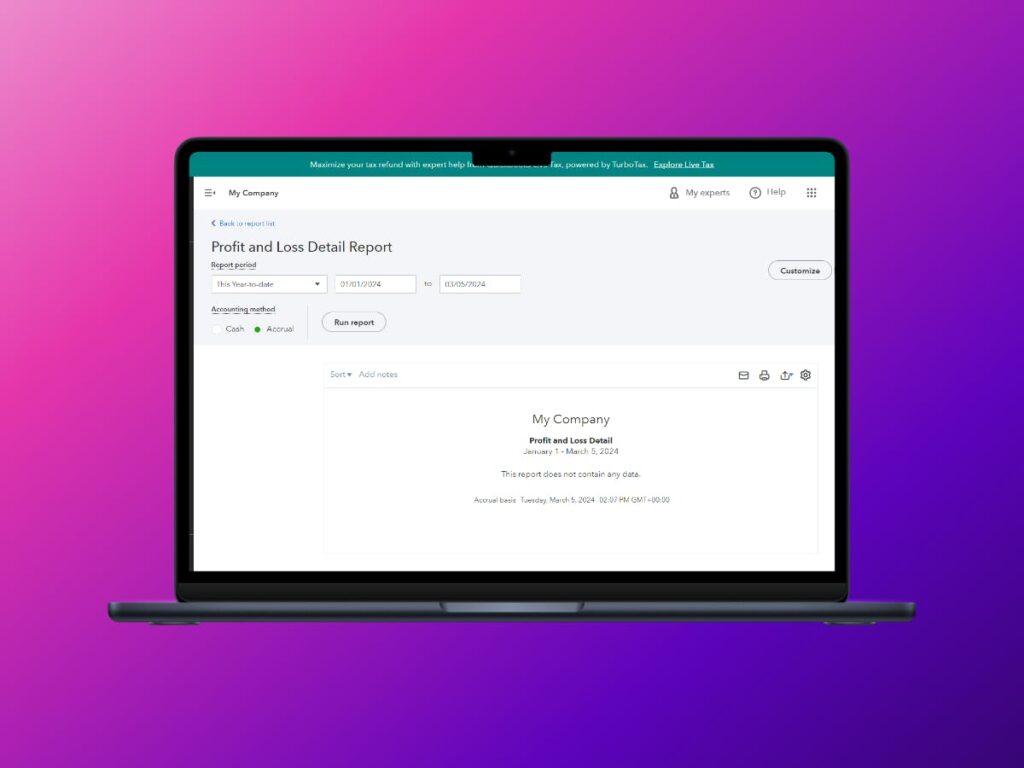
- Set the desired date range for the report. You can select predefined ranges like "This Fiscal Year" or customize the dates as needed.
- Click "Run Report" to generate the profit and loss report for the specified period.
Also Read: How to Send an Invoice in QuickBooks?
Generating a Profit & Loss Report in QuickBooks Online
Generating a profit and loss report in QB Online follows a similar process. Here's how you can do it:
- Log in to your QuickBooks Online account.
- Navigate to the "Reports" tab on the left-hand menu.
- Click on "Profit and Loss" under the "Business Overview" section.
- Set the date range for the report by clicking on the calendar icon and selecting the desired dates.
- Customize the report by adjusting settings such as "Show Rows" and "Show Columns" to include or exclude specific details.
- Click "Run Report" to generate the profit and loss report based on your selected criteria.
Conclusion
Generating a profit and loss report is essential for understanding your business’s financial health. By following the steps above, you can quickly create detailed reports that show your revenue, expenses, and how profitable your operation is at a glance. Whether you use QuickBooks Desktop or QuickBooks Online, you’ll find the process straightforward, and you can always tweak your reports for your specific needs. Make the most of this feature to guide your decisions and help your business thrive.
Need help importing, exporting, or bulk deleting invoices in QuickBooks? Try out TranSync Pro, your one-stop solution to perform all bulk operations in QuickBooks.
Some More Interesting Reads:
QuickBooks Setup Guide for First-Time Users
Creating and Utilizing Classes in QuickBooks
How to Set Up Chart of Accounts in QuickBooks?