
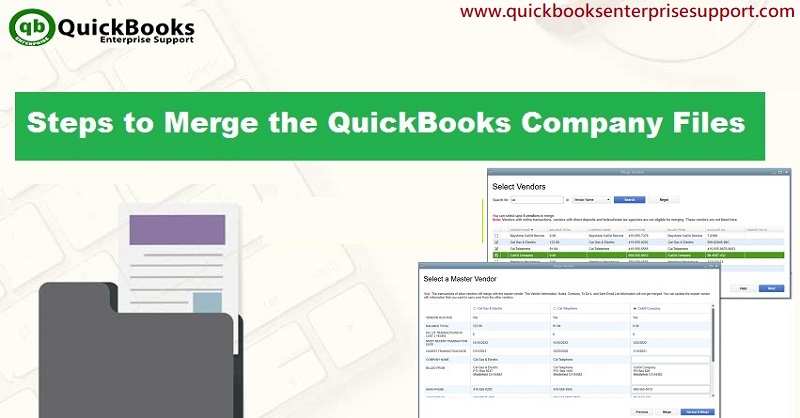
Ways to merge QuickBooks company file
These days, the majority of small and medium-sized businesses are using QuickBooks to streamline the various accounting tasks. This software has amazing features that help organisations in managing their finances, accounting, inventory, and more. And thereby making the business operations smoother. Every year, Intuit comes up with a new version of QuickBooks that contains new and improved features.
Among many useful features, Merge QuickBooks Files is one of the best ones. With the help of this feature the QB users can combine financial reports from different company files. This assists in including balance sheets, profit and loss, copy transactions, generate reports and many more. There are different ways to use the merge QuickBooks company files feature. In fact, there are three methods to combine financial reports — through QuickBooks itself, through third party application or through Microsoft Excel.
Now, one important thing to understand here is that QuickBooks does not offer a built-in tool that completely merges two company files into one single file. Each company file is distinct and separate. So what you can do is combine the financial reports from both files. And that is what this article is all about. However, before you start with the steps to merge files there are a few points that you should adhere to.
For further help with merging QuickBooks company files, feel free to call our experts at +1 (855) 666-0469.
Before You Start — Important Points to Keep in Mind
- The combined reports must be very easy to read
- Create Chart of Accounts same in different company files
- The accounts can be merged only if they have the same name, type as well as same gradable level
- The accounts will not merge if they are at different levels
- In case the spellings are not similar, accounts will not merge
- If they have different account numbers, they will not merge
- For the combination routine, you might have to log in to your files and then turn them into multi-user mode
- Always create a backup of both company files before starting the merge process
- Go to File and select Back Up Company and then Create Local Backup
- Store the backup in a safe location — this is your safety net if anything goes wrong
Related article: How to setup and use QuickBooks Web Connector tool?
Data That You Cannot Merge
Below are the data types that you cannot merge in QuickBooks. It is important to be aware of these before starting:
- The payroll checks are combined in the regular check, hence they won't be shown on the payroll reports
- The Memorized Transactions are not transferred from the secondary files
- Bank Reconciliations cannot be merged as QuickBooks does not support it
- The Data Files have negative inventory while it is difficult to merge the assembly builds
- The Data files that have the sales tax items and groups, they get changed later on
- The customer To-do lists and notes cannot be merged
- It is not at all possible to merge Customer Fields from transactions
- Budgets and Forecasts cannot be merged
- User accounts will not carry over — you will have to add them again manually
- Memorized reports also do not transfer from the secondary file
- Templates from one company file cannot be transferred automatically — they need to be imported manually after the merge
You may also like: How to create Proforma Invoice in QuickBooks?
Steps to Merge QuickBooks Company Files
Below are different ways through which you can merge financial reports from different company files:
Step 1: Back Up Both Company Files First
Before anything else, you need to back up both the source and the target company files. This step is very important and should not be skipped.
- Open QuickBooks and go to the File menu
- Select Back Up Company
- Click on Create Local Backup
- Choose a location and save the backup file
- Do the same for the second company file as well
- The last step is to keep the backup in a safe location on your system
Step 2: Use the QuickBooks Combined Reports Feature
The built-in merging files feature in QuickBooks Desktop Enterprise helps you combine reports very easily from QuickBooks company files. Balance Sheet standard, statement of cash flows, balance sheet summary, profit and loss by class, trial balance and profit and loss standard can be combined through this feature.
Note: This feature is only available in QuickBooks Desktop Enterprise. If you are on Pro or Premier, skip to Step 3 or Step 4 below.
Merge QuickBooks file process to combine reports in QuickBooks Enterprise:
- First go to the QuickBooks main Menu and then search for the Reports Menu
- Now click on the Reports Menu
- After this in the submenu list, you have to click on Combine Reports from Multiple Companies
- Now choose Add Files
- Look for another company file
- Click on Open
- For additional company files you have to repeat the same process
- Now you have to go to the section that allows you to choose reports for combining
- In this step, you have to choose the reports which you want to have combined information
- After this, set the date range for the report by filling the From and To fields
- Once done, choose a Reported Basis
- Search for Combine Reports in Excel and then select it
- After this a Microsoft Excel sheet will be displayed on the screen containing the combined information
If you have other report combinations or if you are using QuickBooks Pro or Premier, you can use the two options mentioned below. Also, if you are using QuickBooks Mac Desktop version, you have to use Step 4 mentioned below.
Similar Article: How to enter Payroll Service Key in QuickBooks?
Step 3: Use third party software
There are various utilities available from the Intuit Marketplace that are compatible with QuickBooks desktop and enhances its functionality. So, it is suggested that you look for third-party software that can help in creating combined reports easily from the QuickBooks company data files. Do note, that the Intuit Marketplace programs are not compatible with the QuickBooks Mac Desktop version. In that case, the user has to go for the next method mentioned below.
Step 4: Manually Export and Merge QuickBooks Company Files
In this method you have to manually export the reports from each of the files and then you have to combine these reports by using Excel software.
Follow the below mentioned procedure for this:
- The first thing to do is to open the first data files.
- Create the report for the data file
- Now export the report that you have created to a worksheet opened in Excel workbook.
- Once you have exported the report save the workbook.
- Close the first data file
- Now open the second data file
- After you have opened the second data file create the same report
- Again, export the report to a new worksheet opened in the same Excel workbook
- Open Microsoft Excel
- Now open the workbook
- In this step, you will need to manually combine two of the exported reports in two different worksheets into a third Excel Worksheet.
- Once done, save the Excel workbook.
Step 5: Use the Copy Company File for QuickBooks File Merge Option
This is an additional option available in some versions of QuickBooks Desktop. It allows you to prepare a copy of one company file specifically for merging purposes.
- Open QuickBooks Desktop
- Go to the File menu
- Select Utilities
- Click on Copy Company File for QuickBooks File Merge
- Follow the on-screen prompts to prepare the file
- Make sure both files have the same account names, types, and levels before proceeding
- The last step is to use the combined reports feature to bring the data together
Read Also: How to sync QuickBooks files between two computers?
Common Issues You Might Face While Merging
At times, users run into a few common issues during the merge process. Here is what to watch out for:
- Duplicate accounts showing up — this happens when account names in both files do not match exactly. Review your Chart of Accounts carefully before merging
- Negative inventory errors — if either file has negative inventory, the merge will not process correctly. Fix inventory levels first
- Sales tax items changing — QuickBooks does not maintain historical tax rate changes, so sales tax items from the secondary file may change after merging
- Missing transactions after merge — always run a verify data and rebuild data before starting the merge process
- To do that, go to File then Utilities then Verify Data, and after that Rebuild Data
Winding Up!
The merging of the QuickBooks company file isn't as complicated as it seems through the mentioned steps. However, if you face issues with it, then the enterprise support team is always there 24/7 to aid you. Feel free to connect with our experts by dialing our toll-free number at +1 (855) 666-0469.
Frequently Asked Questions
Q. Can I fully merge two QuickBooks company files into one?
Not completely. QuickBooks does not have a built-in tool to fully merge two company files. However, you can combine financial reports and use third-party tools to transfer data between files.
Q. Is the Combined Reports feature available in all QuickBooks versions?
No. This feature is only available in QuickBooks Desktop Enterprise. Pro and Premier users need to use third-party apps or the manual Excel method.
Q. Can I merge QuickBooks Online company files?
No. The ability to merge two company files is currently not available in QuickBooks Online. Each company file is separate and cannot be merged.
Q. Do I need to backup before merging?
Yes, absolutely. Always back up both company files before starting any merge process. There is no undo option once a merge is done.
Q. What happens to user accounts after merging?
User accounts from the secondary file will not carry over. You will have to add them manually to the new file after the merge is complete.
Articles to read:
How to Fix QuickBooks Scheduled Backup Not Working Problem?