

Get the best ways to upgrade your company files so it works in newer versions of QuickBooks Desktop Pro, Premier, or Enterprise.
Planning to upgrade your company file after switching to a new version of QuickBooks desktop? If yes, then you have landed at the right page. In case you are upgrading to a newer version of QuickBooks, then you might need to upgrade the company file so that you can keep using it. It should be noted that you only have to upgrade the company file once.
Moreover, one needs not to upgrade the file when switching to a different edition of the same year, such as from Pro to Premier or Premier to Enterprise. Another important thing to note is that the process is different from updating the QuickBooks desktop software to the latest release. To know more, make sure that you scroll through the post carefully. Or consult our team of U.S based accounting professionals at +1 (855) 666-0469.
You may also like: Fix Custom Email Template Issues in QuickBooks Desktop
Difference Between Upgrading and Updating QuickBooks
Before heading to the steps, it is worth understanding the difference between the two. Many users get confused between updating and upgrading QuickBooks.
- Updating QuickBooks means installing the latest maintenance release of the same version. For example, updating QuickBooks Desktop 2024 to the latest R15 release. This is free and can be done from the Help menu
- Upgrading QuickBooks means switching to a newer year version altogether. For example, moving from QuickBooks 2022 to QuickBooks 2024. This involves purchasing the new version and also upgrading the company file to work with it
In this article, we are talking about the upgrading process. So make sure you have already purchased the newer version of QuickBooks Desktop before starting.
Important Points to Note Before You Start
- If you are using an Intuit hosting server to run QuickBooks, there is no need to carry out this process manually. Simply reach out to the hosting provider for upgrading the files
- Also, if the user has subscribed to QuickBooks Desktop Pro Plus, Premier Plus, or Enterprise, the upgrade steps may differ slightly
- It should be noted that the user will not be able to open the company file in the original older version of QuickBooks after upgrading it
- In QuickBooks Desktop 2024 and Enterprise 24.0, after upgrading the company file, the user will need to reset the passwords for all non-admin users to a temporary password. When non-admin users sign in, they will be prompted to set a permanent password
- If you keep company files on a server, it is suggested to move the files to the local hard drive before upgrading and move them back after
- Always create a backup of the company file before starting. This is the most important step
Steps to upgrade old company file to work in a newer version of QuickBooks
Before you start off with a process, the most important thing is to note that if you are using an Intuit hosting server to run QuickBooks, then there is no need to carry out the process, you can simply reach out to them for upgrading the files. Also, if the user has subscribed to QuickBooks desktop pro plus, premier plus, or enterprise, then the steps can be skipped.
Now that you know the important points, it is time to start with the steps to upgrade the company files after switching to a new version of QuickBooks desktop.
Step 1: Installing QuickBooks desktop
- Under this step, the user needs to first sign in to the windows using the admin credentials
- And then, download the new version of QuickBooks desktop, in case you haven’t already
- The last step is to install the new QuickBooks desktop version.
Step 2: Preparing the company file
It should be noted that this step along with the third step of upgrading the company file should be followed for each of the company file that is to be upgraded. The steps involved in here are as follows:
- The user needs to open the original version of QuickBooks. And then open the company file to be upgraded
- Now, press F2 key to open the product information window
- And look in the file information section and also note where the company file is saved on the system
- The user is then required to run the rebuild tool for the company file. This preps it for the upgrade.

In case the user keeps the company files on a server, then in that case it is suggested to move the company files to the computer’s local hard drive. The user can move them back after upgrade.
Step 3: Upgrading the company file
QuickBooks asks the user to upgrade the company file the first time it is opened up in the newer version. Also, it is important to keep in mind that the user won’t be able to open the company file in the original version of QuickBooks after upgrading it. The steps to be followed here are as follows:
- Here, the user needs to first ensure that all the users are logged out of the company file
- Now, open the new version of QuickBooks desktop
- And also, select open or restore company, in case you don’t have a company file open. Moreover, navigate to the file menu and select open or restore company

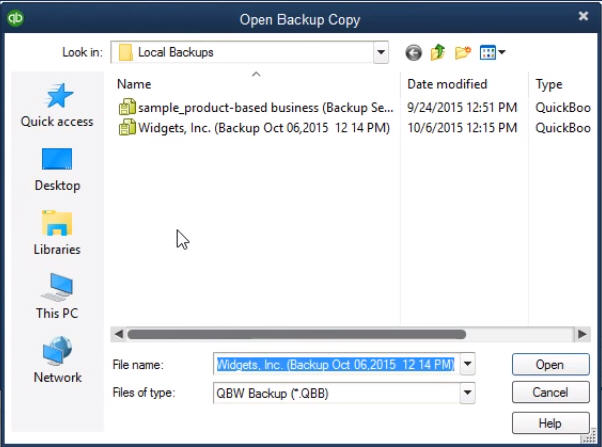
- The next step is to select open a company file and hit next. In case the user is having the backup company file instead of company file with .qbw file, then it is suggested to select restore a backup copy and then local backup
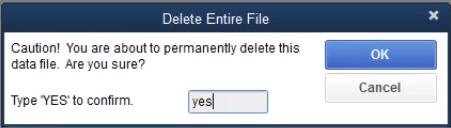
- Moving ahead, the user needs to browse the system for the company file and also select the file location written in step 1 and choose open.
It should be noted that if the user is unable to spot the company file, then it is suggested to open the windows start menu and also open file explorer. Followed by search the company file by name or the .qbw file extension. In case the user is unable to find it, then ensure that it is not hidden.
- Now, sign in to the company file as admin
- Before upgrading, the QuickBooks software will create a backup of the existing company file. The user will have to select change this default location to save the backup in specific folder
- And also, choose update now tab to start the upgrade
- The last step is to select done, when QuickBooks completes the process
The user can open the company file in the new version of QuickBooks desktop. In case the user keeps the company file on a server, then he/she can move them back.
Step 4: Resetting Non-Admin User Passwords (For QuickBooks 2024 and Enterprise 24.0)
This is an additional step that is required only for QuickBooks Desktop 2024 and Enterprise 24.0 upgrades.
- After upgrading the company file, go to the Company menu
- Select Set Up Users and Passwords
- Click on Set Up Users
- For each non-admin user, click Edit User
- Set a temporary password for the user
- Click Next and then Finish
- When the non-admin user signs in for the first time after the upgrade, they will be prompted to set a permanent password
- The last step is to inform all non-admin users to sign in and set their new passwords
Step 5: Updating QuickBooks Desktop After the Upgrade
After upgrading and opening the company file, the user needs to update QuickBooks Desktop so that he/she has the latest software release.
- Open QuickBooks and go to the Help menu
- Click on Update QuickBooks Desktop
- Go to the Update Now tab
- Click on Get Updates
- Once the update downloads, restart QuickBooks
- When prompted to install the update, select Install Now
- The last step is to reopen QuickBooks and verify everything is working correctly
How to Upgrade QuickBooks Desktop Directly from Within the Software
At times, QuickBooks itself prompts the user to upgrade when a newer version is available. Here is how to use that option:
- Open QuickBooks Desktop and sign in to the company file
- Go to the Help menu and select Upgrade QuickBooks
- Find the latest version of QuickBooks Desktop
- Check out the new features and improvements before you upgrade
- Check the system requirements to find out what your computer needs for the upgrade
- Make sure to back up your company file before you upgrade
- There are two upgrade options to choose from:
- Upgrade Now — to start the upgrade immediately
- Schedule Upgrade — to set a date and time for the upgrade at a later point
- Select Upgrade Now and then select Continue
- Wait for the upgrade to install
- To keep the old version, select Keep the Old Version of QuickBooks on My Computer and then select Let's Go
- To remove the old version, leave the option blank and select Let's Go
- The last step is to wait for the process to complete and then select Open QuickBooks
Common Issues You Might Face During the Company File Upgrade
At times, users face a few issues while upgrading the company file. Here are the most common ones:
- Company file not found during upgrade — Open File Explorer and search for the file by name or by the .qbw extension. Also make sure the file is not hidden
- Upgrade fails midway — Restore the backup that QuickBooks created before the upgrade and try again. If the upgrade fails again, contact customer support
- Cannot open the company file in the old version after upgrade — This is expected behaviour. Once upgraded, the file can only be opened in the new version
- Non-admin users cannot sign in after upgrade — The admin user needs to reset the temporary passwords for all non-admin users as shown in Step 4 above
- Other users cannot open the file after upgrade — Make sure all users have the same new year version of QuickBooks Desktop installed on their computers
Read Also: How to Print General Ledger Report in QuickBooks?
Conclusion!
Upgrading the company files after switching to a new version of QuickBooks desktop is not a tough nut to crack. In this piece of writing, we have tried to summarize all possible steps to carry out this process. However, if you are unable to upgrade the company files even after implementing the above strategies, then in that case we are there to assist you. Connect with our CPAs and accounting experts using our helpline number at +1 (855) 666-0469, and get instant support services from some of our tech geeks.
Frequently Asked Questions
Q. Can I open the upgraded company file in the older version of QuickBooks?
No. Once the company file is upgraded to a newer version, it cannot be opened in the older version. Make sure to back up the file before upgrading.
Q. Do all users need the same version of QuickBooks after the upgrade?
Yes. All users who share the company file will need to have the same new year version of QuickBooks installed on their computers to open the file after the upgrade.
Q. What happens if the company file upgrade fails?
QuickBooks creates a backup of the company file before starting the upgrade. If the upgrade fails, the user can restore that backup and try again.
Q. Do I need to upgrade the company file when switching from Pro to Premier?
No. Switching between different editions of the same year version, such as from Pro to Premier, does not require a company file upgrade.
Similar Articles:
What are the steps to undo a deposit funds in QuickBooks desktop?