
Learn how you can transfer QuickBooks Desktop to a new computer in two steps
Many of us change our computers every few years. There may be multiple reasons for that, for example, better configuration, faster speed, more space, and so on. While moving normal data such as videos and images is simple for all of us, a few things like transferring QuickBooks accounting software to your new computer may be tricky. This blog post is crafted to take you through the process of moving QuickBooks Desktop from one computer to another along with the license and without losing any crucial data.
You can follow the instructions provided herein to transfer QuickBooks to a new computer on your own. Moreover, you can also get in touch with our support team via our toll-free number at +1 (855) 666-0469. Our experts and certified accounting professionals will be there to assist you in a single call. Thus, feel free to call us anytime and ask our support team for any kind of technical assistance.
You may also like: Steps to setup multi-user network in QuickBooks in QuickBooks
What All Do You Need to Move QuickBooks Desktop to a New Computer?
You would have to ensure the following things for performing the process of transferring QuickBooks to a different computer:
- You would have to register for the software after the installation, thus make sure that your new computer is connected to the internet.
- You would require an external storage device to store your QuickBooks Desktop files.
- Keep your license and product registration details close to save time.
- Keep your QuickBooks software installation disk or the setup file stored on an external device.
- Create a backup of all your QuickBooks company file.
- Uninstall QuickBooks Desktop from the old system.
Migrator Tool Limitations to Know Before You Start
It should be noted that the Migrator Tool has certain limitations. The user needs to be aware of these before starting:
- The Migrator Tool is only available for the US version of QuickBooks Desktop 2018 or newer
- It works only for single-user setups — multi-user configurations need to be set up fresh on the new computer
- The tool copies only up to the last 3 company files opened
- 64-bit QuickBooks files can only be migrated from one 64-bit system to another. If your USB has files from the 64-bit QuickBooks Desktop 2022 or 2023, the migrator tool may stop unexpectedly when running on a 32-bit Windows system
- Payroll setups, Intuit Data Protect, and multi-user configurations are not copied by the tool and need to be set up separately on the new computer
- Custom templates, memorized reports, and printer configurations may also need to be transferred manually
- The new computer must have Windows 11 or later as per the latest system requirements
Transfer QuickBooks desktop to another computer with the help of Migrator Tool
In case the user needs to reinstall or move QuickBooks desktop to another system, it can be done by using either the Migrator tool or by carrying out manual process. The user can carry out the transfer of the software into two parts.
The important point to consider here is that, in order to use the Migrator tool, the user will needs to be the company admin.
How the Migrator Tool works?
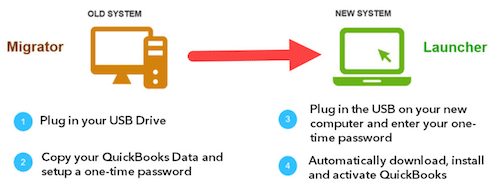
- The user will have to create a complex password to unlock everything copied to the new system. It should be noted that this password is used once and only by the Migrator tool. Also, make a note of password, to avoid losing it.
- After that, the tool will copy up to the last 3 company files opened to a USB flash drive
- The user will have to use the flash drive for moving the files, but all technical work is performed by the Migrator tool
- The Migrator tool will download the right version of QuickBooks desktop to new system and sets it up with the files
- It should be noted that, the tool wouldn’t reformat the drive or erase any of the other files
What you’ll need
- The user will have to have the new system connected to the internet
- A USB flash drive with enough of free space is also required to hold the QuickBooks files. The tool will tell the user the free space required. It would be approximately between 150 and 250 MB.
Steps to setup and use the Migrator Tool in QuickBooks
Following are the quick steps to setup and use the migrator tool in order to move or reinstall QuickBooks Desktop to another computer:
Part 1: Perform the following steps on your old computer:
- Sign in to your computer as an administrator.
- Attach the USB drive to the computer.
- Go to QuickBooks Desktop and click on the File menu and then choose Utilities option.
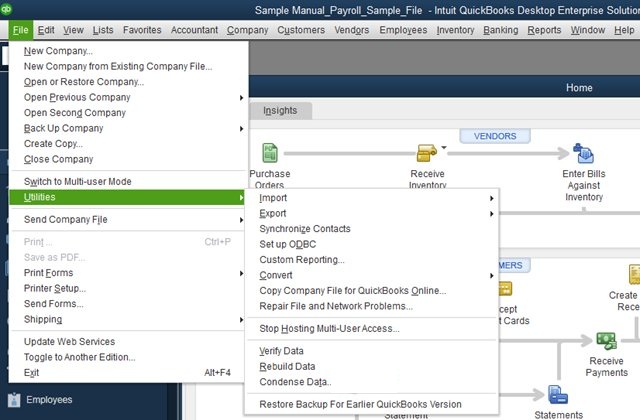
- Select Move QuickBooks to another computer.
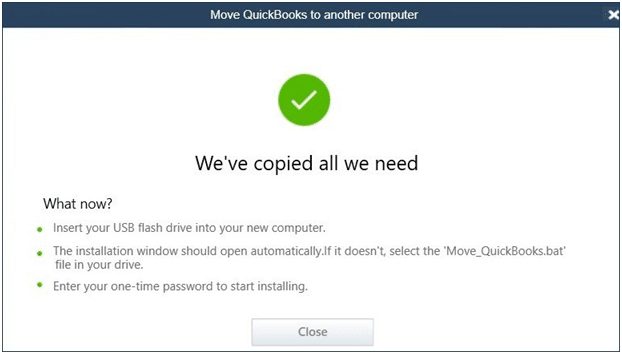
- Click I’m Ready and then set a strong password.
- Now copy all the files that need to be moved to the new computer and paste them in the USB drive.
- Remove the USB drive after the files are moved.
Part 2: Perform the following steps on your new computer:
- Attach the USB drive to your new computer and wait until the QuickBooks Migrator tool automatically appears.
- After that open the flash drive to view it’s files. If the tool does not appear automatically, click the Move_QuickBooks.bat file in the USB drive to start the migrator.
- Now enter the password you chose while moving files on the old computer.
- Click Let’s go option and allow the tool to finish the QB migration task.
- Now wait for the Migrator Tool to finish. Once the installation is accomplished, open QuickBooks on your new computer.
Point to be noted: The migrator files will get deleted on their own from the USB flash drive, once you are done. However, the QuickBooks files will be present on the system. It is recommended to change the name of the files on the old system in order to avoid any further mess.
- After that go to the Help tab and click on Register QuickBooks.
- Enter all the necessary details such a phone number, postal code, and license key to complete the registration.
Read Also: What is .ND files in QuickBooks desktop?
Things to do post mobbing QuickBooks to the new computer
- You would have to sign in to all the services such as QB Payroll and Intuit Data Protect again to use them.
- In case you have more than one company file, use the USB drive to copy that to your computer.
- Ensure to keep a backup of company file data on the current computer.
- Set up the Database Server Manager on the new computer if you are using multi-user mode
- Re-enter your payroll service key to reactivate payroll on the new system
- Check and reconfigure your email settings in QuickBooks on the new computer
- If you had any memorized reports or custom templates, transfer them manually from the old system
Steps to Manually move or reinstall QuickBooks without using Migrator Tool
In order to install QuickBooks manually to the new device, the user can carry out the steps below:
- The very first step is to reinstall or move QuickBooks desktop installation
- After that, the user will have to have the product and license info
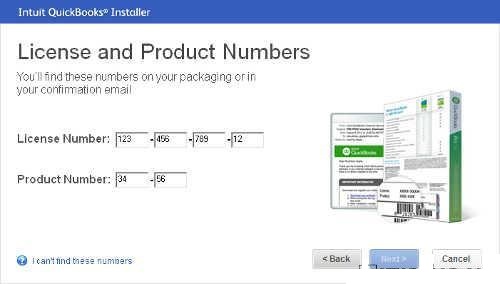
- Now, move to the downloads and updates page to get the download link
- And then, uninstall the existing QuickBooks program before you begin with reinstalling
- On system where you want your QuickBooks to be installed, download the installation files or insert the CD
- The last step is to install QuickBooks desktop normally
After the software is installed, the user can now restore the backup copy of the company file from the old location to the new system. The steps involved in this process are as follows:
- The very first step is to visit the file menu
- And then select open or restore company option
- Once done with that select the restore a backup copy and hit next
- The next step is to select the local backup and hit next again
- Now, the user needs to pick the location of the backup from the look in drop down
- And then click the backup file from the folder
- Moving ahead, select open and next
- And from the save in drop down, select the location to save the file
- Now, name the file
- And lastly, hit save
What to Do If the Migrator Tool is Not Working
At times, the Migrator Tool might not work as expected. Here are a few things to check:
- Make sure the new computer is connected to the internet before running the tool
- Check that the USB flash drive has enough free space — at least 150 to 250 MB
- If you are moving from a 64-bit system, make sure the new computer is also 64-bit
- Try running the Move_QuickBooks.bat file directly if the tool does not open automatically
- If the tool stops midway, restart it and try again
- In case the tool keeps failing, switch to the manual method described above
- Also make sure that Windows 11 or later is installed on the new computer as per the updated system requirements
Read Also: How to recover important data from QuickBooks enterprise?
Conclusion!
We hope you are able to transfer your QuickBooks Desktop to another computer by the above provided steps in this article. You may face some issues while transferring QuickBooks to the new computer or later. If that happens, you can reach our 24x7 QuickBooks enterprise technical support team at +1 (855) 666-0469 for quick and precise assistance.
Give us a call at our toll-free number, and let our experts and certified accounting team resolve the issue for you.
Frequently Asked Questions
Q. Can I transfer QuickBooks to a new computer without the original disk?
Yes. You can download the QuickBooks installation file from the Intuit downloads and updates page using your license number. No disk is required.
Q. How many company files can the Migrator Tool copy?
The Migrator Tool copies up to the last 3 company files that were most recently opened. If you have more files, you will need to copy them manually to the USB drive.
Q. Do I need to uninstall QuickBooks from the old computer after transferring?
Yes. QuickBooks license allows only one active installation per license. After moving to the new computer, uninstall QuickBooks from the old one.
Q. Will the Migrator Tool transfer my payroll settings?
No. Payroll setups and Intuit Data Protect are not copied by the Migrator Tool. The user will need to re-enter the payroll service key and sign in to these services again on the new computer.
Q. Can I use the Migrator Tool for multi-user setups?
No. The Migrator Tool is only for single-user setups. For multi-user environments, the user will need to install QuickBooks manually on the new server and reconfigure the Database Server Manager.
See other helpful articles:
How to turn on advanced inventory in QuickBooks desktop?