
Learn about .ND files in QuickBooks Desktop
Regardless of the fact that you are a QuickBooks user or not, you might be aware of this wonderful accounting software or you might have heard about it. But do you know about QuickBooks .ND files? Or are you aware of the functions of .ND files in QuickBooks desktop? Do you have any idea regarding the usage of these .ND files? Well, if you are a QB user, then it is mandatory for you to have the basic knowledge regarding the facts associated with .ND files in QuickBooks desktop.
You might be thinking that why you need to know about all this. Well, at times while operating this software, the users might encounter .ND file errors. And this is where the user might get puzzled if he/she does not know about the .ND files. To make it simple, we have come with this article, where we will be having a detailed discussion regarding .ND files in QuickBooks desktop. So, stay tuned and enhance your knowledge with us.
Whereas, if any of the queries associated to .ND files are troubling you, feel free to speak to our QuickBooks Enterprise support team at +1 (855) 666-0469. Just ring up at our toll-free number and our team will be there to assist you in a single call.
You’ll also like: How to Fix QuickBooks 6000 series errors?
What do you understand by .ND files in QuickBooks?
Before digging in deep and learning various facts related to .ND files, it is sensible enough to first get a brief about what actually is .ND file in QuickBooks desktop. Basically, .ND files (Network data files) are configuration files that permit the QuickBooks software to access the company file in a multi-user environment. These files are created by the QuickBooks Database server manager (QBServerUtilityMgr.exe). These files identify the database server used by the program.
In simple words, when QuickBooks tries to access the company file over a network, the .ND file acts as the bridge. It holds the network details that help QuickBooks locate and connect to the company file on the server. Without a proper .ND file, QuickBooks simply cannot find the company file in multi-user mode.
What are the functions of .ND files?
Talking about the functions or facts related to .ND files, the list is as follows:
- .ND file is usually created by the QuickBooks database server manager that too in the same folder, where the company file is situated. This file could be easily identified with the help of .ND file extension.MyCompanyFile.nd
- MyCompanyFIle.qbw.nd
- .ND files could also be seen in a single-user environment that earlier had multi-user access option turned-on.
- Another fact of .ND file is that it is 1 KB in size and is a text file. This file can be easily opened and edited in Notepad and can be identified with a text icon.
- The .ND files contain the information that the QuickBooks accounting software required to communicate with the server, such as the IP address and the port. Along with that, these files find out whether the company file is in use or not.
Note: The server name and the IP addresses can also be found in the Product information by simply using the F2 key or Ctrl +1 keys.
See this also: How to Fix QuickBooks Payroll Update Error Code 15215?
Sample .ND file
- Server IP Address – The user can get the server IP address and then evaluate it with the one contained .ND file.
- Server Name and QB Year – The server name could be found in the middle and the QuickBooks database server manager version is at the end: 28=2018, 27=2017, 26=2016, etc.
- Port used – The port is to be opened/added in the firewall settings.
- Full path to company file – It should be noted that any path other than C: will need added troubleshooting.
- 1 for hosting on and 2 for hosting off – It should be noted that the hosting need to be turned on for a file to be opened in a multi-user network setting.
- Usually blank – Usually blank can be ignored.
Read also: How to fix login problems of QuickBooks online on google chrome?
Signs That Your .ND File is Damaged or Missing
At times, users do not realise that the root of their problem is a corrupted .ND file. Here are the common signs:
- You are unable to open the company file and see an error message like "Company file won't open"
- The company file is not listed in the Database Server Manager
- Only one person can access the file at a time even in multi-user mode
- The connection fails even when the file location is correct
- QuickBooks File Doctor also shows .ND or network problems
- You face H series errors like H101, H202, H303 or H505
- You see QuickBooks error code 6189, 816 or error 80070057
What Causes .ND File Errors in QuickBooks?
Here are the basic reasons behind .ND file errors:
- The .ND file is damaged or corrupted
- The .QBW file was moved while upgrading without moving the corresponding .ND file
- Incorrect folder permissions for the company file location
- Firewall or antivirus software blocking the QuickBooks Database Server Manager
- Network configuration issues on the server
- The QuickBooks Database Server Manager is not installed or not running properly
- Only the company file was moved but the .ND file was left behind in the old location
How to Resolve .ND files errors in QuickBooks?
In case when the .ND file is damaged or corrupted, or .QBW file was moved while upgrading without moving the corresponding .ND file. The user can view and recreate .ND files for rectifying the errors, in case when the company file doesn’t open. A few of the common errors that could be seen are:
Solution 1: Reboot system and server
The first solution to get rid of the issues can be to reboot the system and the server. Well, this can be easily done with the help of the below stated steps. Let us check out each of the steps one by one:
- The first step is to visit all the system that have the access to the company file and then reboot them all.
- If the data resides on the server, then start the server once again.
- The next step is to access the company file.
- And if this doesn’t work, jump on to the next solution.
You may also like: How to Fix Common QuickBooks Enterprise Errors?
Solution 2: Fix Incorrect or missing .ND files
In case the above method failed to assist in fixing the issues, the user can opt for another method, where he/she would be required to rectify the incorrect or missing .ND files. The steps involved in this particular process are as follows:
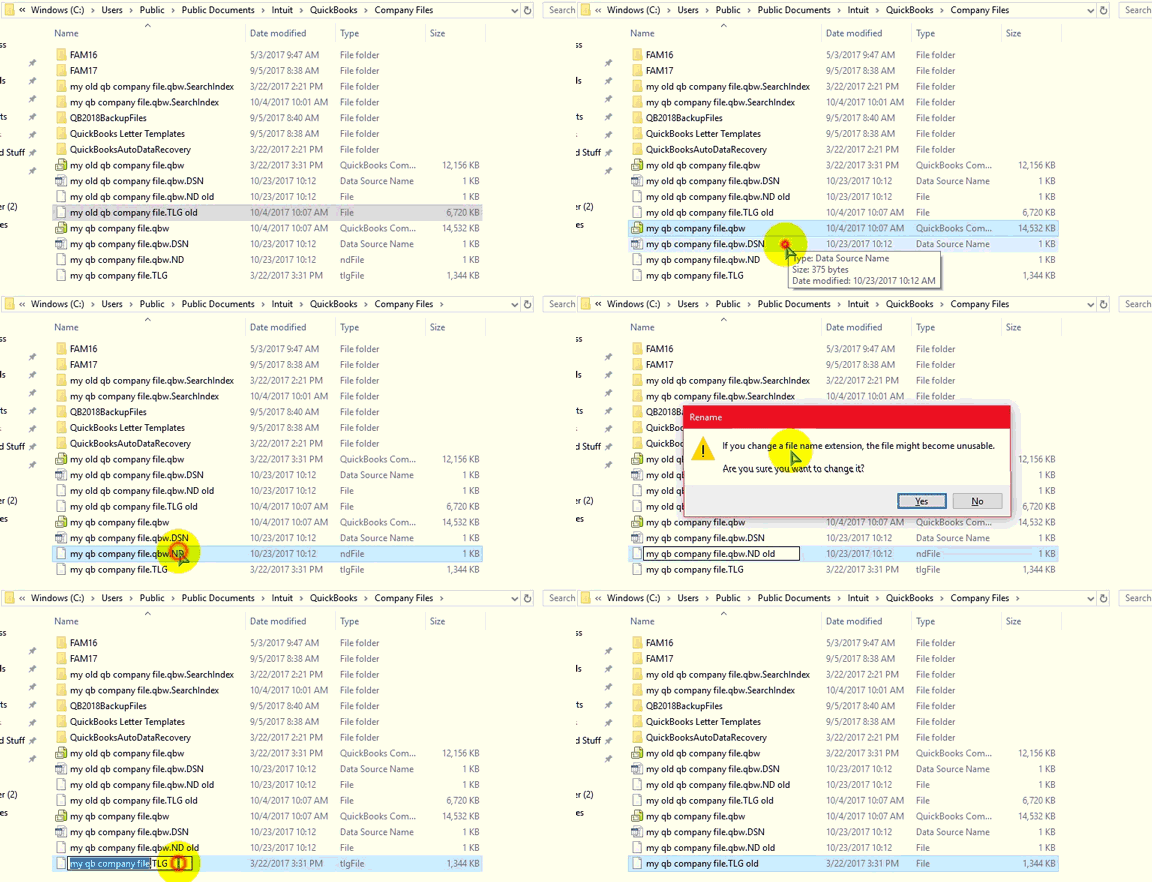
- The first step is to look for .ND in the system that contains the company files.
Note: In case .ND files don’t exist, the user can open QuickBooks company file on the system, where the file resides to create it.
- Remove the files (.NDOLD).
- The user is then required to make use of the database server manager to re-scan the folders. This step would create new files.
This was all about QuickBooks desktop .ND files, and we hope that the information contained in this blog post might help you in any way. We have tried to incorporate almost every fact associated with .ND files.
Solution 3: Rename the .ND File
At times, simply renaming the .ND file is enough to fix the issue. QuickBooks will automatically create a fresh one when it cannot find the old one.
- Open Windows File Explorer
- Navigate to the folder where the company file is stored
- Look for the file with the .ND extension — it will have the same name as your company file
- Right-click on it and go for Rename
- Add .OLD at the end — for example, rename CompanyFile.qbw.nd to CompanyFile.qbw.nd.old
- After that, open QuickBooks Database Server Manager
- Go to the Scan Folders tab
- Click Browse and select the folder where the company file is stored
- Click Start Scan
- The last step is to reopen QuickBooks and check if the error is resolved
Solution 4: Use QuickBooks File Doctor
At times, the QuickBooks File Doctor tool can automatically detect and fix .ND file issues without any manual steps.
- Download the latest version of QuickBooks Tool Hub from the official Intuit website
- Install and open it on your system
- Go to the Company File Issues tab
- Click on QuickBooks File Doctor
- Browse and select the company file
- Choose the option to Check your file and network
- Click Continue and enter your QuickBooks admin password
- Let the tool run — this can take around 10 to 15 minutes
- The last step is to reopen QuickBooks and check if the .ND file error is gone
Solution 5: Check and Fix Folder Permissions
At times, the Windows user account does not have the right permissions to access the folder where the company file and .ND file are stored. This can cause .ND file errors.
- Go to the folder where the company file is stored
- Right-click on the folder and go for Properties
- Click on the Security tab
- Look for QBDataServiceUserXX in the account list
- If it is not there, click Edit and then Add
- Type QBDataServiceUserXX and click OK
- After that, select Full Control
- Click Apply and then OK
- The last step is to restart QuickBooks and check
Solution 6: Configure Firewall Settings
At times, the Windows Firewall blocks the QuickBooks Database Server Manager from communicating with the network. This stops the .ND file from working properly.
- Click on Windows Start and type Firewall in the search bar
- Open Windows Firewall
- Click on Advanced Settings
- Right-click on Inbound Rules and choose New Rule
- Select Port and click Next
- Choose TCP and enter the port number for your QuickBooks version
- Go for Allow the Connection and click Next
- Give the rule a name and click Finish
- Do the same for Outbound Rules
- The last step is to restart the system and check if the .ND file error is gone
Read this also: How to Fix QuickBooks is not exporting to excel error?
How to Prevent .ND File Errors in Future
Here are a few things to keep in mind so you do not run into .ND file issues again:
- Always move the .ND file along with the company file when relocating the company file to a new folder or system
- Make sure the QuickBooks Database Server Manager is installed and running properly on the server
- Keep QuickBooks updated to the latest release
- Make sure the folder where the company file is stored has the right permissions for all QuickBooks users
- Regularly back up your company file so you have a safe copy in case of errors
- Make sure your firewall and antivirus software are not blocking QuickBooks processes
Conclusive words!
This was all about QuickBooks desktop .ND files, and we hope that the information contained in this blog post might help you in any way. We have tried to incorporate almost every fact associated with .ND files. However, if any of your doubts remained unanswered, or in case you have any query, you can get in touch with our technical support team via our toll-free number at +1 (855) 666-0469. Our team of experts and accounting professionals will help you in dealing with all types of QB associated errors.
Frequently Asked Questions
Q. What is a .ND file in QuickBooks?
It is a Network Data file that QuickBooks uses to access the company file in a multi-user environment. It stores the IP address, port, and server details needed to connect to the company file over a network.
Q. Can I open and edit a .ND file?
Yes. The .ND file is a text file of 1 KB in size. You can open and edit it using Notepad. It carries a text icon for easy identification.
Q. What happens if the .ND file is missing?
If the .ND file is missing, QuickBooks will not be able to connect to the company file in multi-user mode. You will see errors like H202 or 6000 series errors. You can fix this by rescanning the company file folder using the QuickBooks Database Server Manager.
Q. Is it safe to delete the .ND file?
Yes. Deleting or renaming the .ND file is safe. QuickBooks will automatically create a fresh one when it scans the company file folder using the Database Server Manager. Your company data is not stored in the .ND file.
Q. Why do I still see a .ND file in single-user mode?
That is normal. If the system was previously used in multi-user mode, the .ND file will still be there. It does not cause any issues and can be left as is.
Other helpful articles you’ll also like:
Fix data damage on your QuickBooks Desktop company file