
All that you need to know about QuickBooks Sync Manager error
Over the past few years, QuickBooks has progressively become popular among businesses of all sizes. Since the launch of this software, there have been extreme changes in the way accounting is done. QuickBooks is packed with a lot of features that help in managing finances and business data.
The QuickBooks Sync Manager is one of the most important features in the software which actually helps in the synchronisation of the company data.
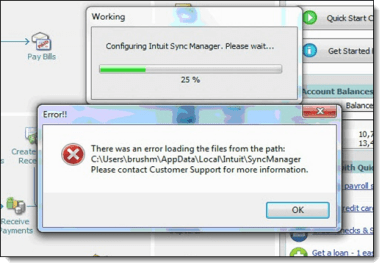
However, at times the users face the QuickBooks sync manager error and due to which they are not able to open the software. So, in this article we will discuss in details about this error, its causes and the methods to resolve the QuickBooks sync manager errors. Thus, make sure that you stick to this post till the end. Or, in order to connect with our experts and certified accounting professionals, you can also ring up to us at our toll-free number. Our technical support team will answer all your queries in a single call.
You may also like: How to resolve QuickBooks activation issues?
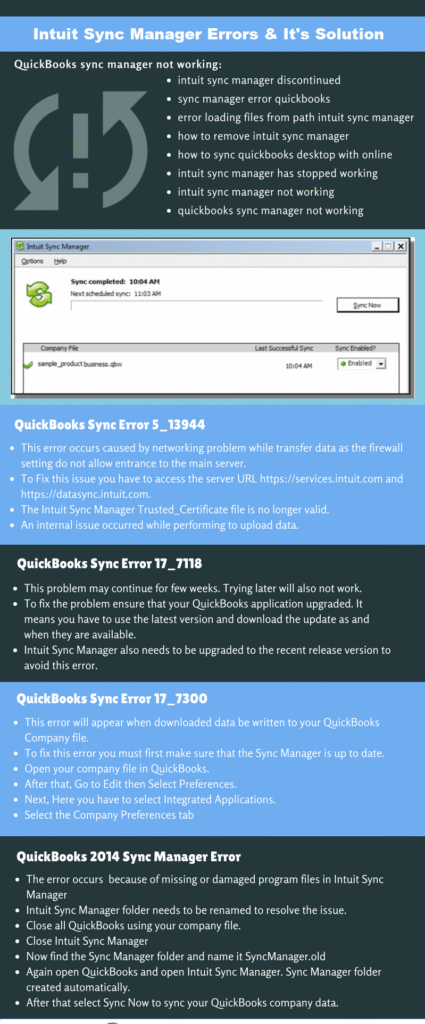
Before moving to the solutions and other information, checkout the info-graphic in order to know the sync manager errors with it’s solution steps:
See Also: How to Fix QuickBooks Error Code 15203 (Reason & Solutions)?
What is QuickBooks Sync Manager?
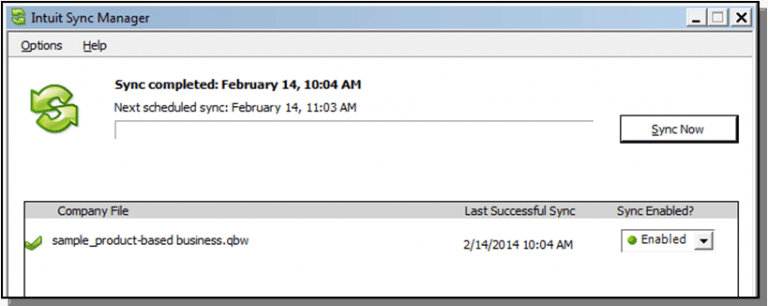
Before learning the troubleshooting of QuickBooks Sync Manager error, the basic step is to get a brief about Sync Manager. QuickBooks Sync Manager is a feature that is embedded in QuickBooks Pro, Premier, and Enterprise Solutions. It should be noted that Intuit Sync Manager synchronizes the QuickBooks company file data with the online services of Intuit.
When the user subscribes to any of the QB services, the user needs to set-up the company file for sync. And this requires access to the QuickBooks company file data. In simple words, it is a component that assists the software to sync securely with third-party apps, along with some QuickBooks internal add-on services.
Now what exactly makes it so important? Well, without Sync Manager working properly, your QuickBooks data cannot communicate with Intuit's online servers. Things like online billing, merchant services, and third-party app integrations all depend on it. The moment it breaks down, your data stays stuck on one end. That is when you start seeing the various sync manager errors pop up.
Signs and Symptoms of QuickBooks Sync Manager Error
Before heading to the solutions, it helps to confirm you are actually dealing with a sync manager error. Here are the common signs:
- QuickBooks stops responding or shuts down without warning
- You are unable to open the company file at all
- The sync manager icon in the system tray shows an error
- Data fails to sync between QuickBooks Desktop and Intuit online services
- Third-party apps connected to QuickBooks stop receiving updates
- You see error messages like "Intuit Sync Manager is not set up to sync any files"
- Slow performance or freezing while trying to sync data
- QuickBooks has stopped working message appears on screen
Read Also: How to resolve Pdf and Printing errors with QuickBooks?
Causes of QuickBooks Sync Manager Error
There can be a couple of factors causing the QuickBooks sync manager error. Below are some of the main causes of this error:
- When some of the key files are missing
- When some of the important files are corrupted
- During transferring of data there are issues in the network
- When some setting in the firewall does not allow entry into the main server
- When there is missing sync manager updates
- Damaged or corrupted Sync Manager installation files
- Internet security software blocking the Sync Manager URLs
- Using an outdated version of QuickBooks Desktop
- Wrong folder location of the Sync Manager program
- Conflicts with antivirus software running in the background
You may see the following error messages when Intuit sync manager triggers problem:
quickbooks sync manager error
error: loading from the path
error: sync manager not set-up
intuit sync manager discontinued
sync manager error occurred
sync manager error in quickbooks
error loading files from the path intuit sync manager
intuit sync manager is not working
how to remove intuit sync manager
how to sync quickbooks desktop with quickbooks online
Things to Check Before You Begin
There are a few things worth verifying before diving into the solutions:
- Make sure you are signed in as an Administrator on Windows
- Ensure QuickBooks is updated to the latest release
- Check that your internet connection is stable and active
- Disable antivirus temporarily to rule out interference
- Make sure the Sync Manager folder is in the correct location
For Windows 7 and Vista: C:\Users\username\AppData\Local\Intuit For Windows XP: C:\Documents and Settings\username\Local Settings\Application Data\Intuit
List of QuickBooks Sync Manager Errors and their Solutions
Below we will be checking out the related error codes to QuickBooks sync manager and the relevant solutions to each of them. Let us have a look:
Error 1: QuickBooks 2014 Sync Manager Error
This error can be caused due to missing or damaged program files in the Intuit Sync Manager. In order to resolve this error, renaming the sync manager folder might work.
The steps to fix this are as follows:
- The very first thing is to make an attempt to open the company file and also log out from QuickBooks
- For logging out from QuickBooks, the user needs to right click on the sync manager icon, present in the system tray exit and after that click on the exit sync manager
- The next step is to spot the sync manager folder in the system and then change the name to SyncManager.old
- The last step is to restart the software and open the sync manager. After this, the sync manager will form a sync manager folder and then to link the same, the user will have to click on sync now tab
You may also like: How to Update QuickBooks Desktop for Mac?
Error 2: QuickBooks Sync Manager Download Error
Steps to fix this error
- To begin with, the user is required to remove the QuickBooks software if installed already
- And then, the user needs to change the name of the folder and also this will let the user to find the folder in C drive
- The user can continue with the below steps, if the user is unable to change the name of the folder:The first thing is to choose the Window taskbar and then click on the Processes tab
- After that, select the column heading with the image title along with alphabetical sequence in the way the user is looking for the process to execute.
- Now, the user will come across the files that have extension like QBDBMgr.exe, QBDBMgrN.exe and more, in the image name column. Thus, the user will have to opt for them and end the process.
- The user will get a cautioning message stating “Dismissing a process can entail unwanted outcomes including loss of valuable as well as system instability.” In such a situation, the user needs to click on Yes.
- After that, reinstall the QuickBooks sync manager
See Also: How to sync QuickBooks files between two computers?
Error 3: QuickBooks Sync Error 17_7300
You may get the error message when the downloaded data will not be written to your QuickBooks Company file or write back phase.
Below are few simple steps to fix the problem:
- In this method, the user needs to ensure that the sync manager is up to date
- And then, make an attempt to open the company files in the QuickBooks software
- After that, the user needs to select edit and click on the preferences tab
- The next step is to click on integrated applications
- And also choose the company preference option
Read this also: How to Access QuickBooks Remotely (QuickBooks Remote Access)?
Error 4: QuickBooks Sync Error Windows 10
You might have upgraded your Windows to Windows 10 and tried to use Sync Manager and faced issues. The problems arise due to corrupt or missing program file.
To fix the issue follow the below mentioned steps:
- Now, for the QuickBooks Sync Error Windows 10, the user needs to retitle the sync manager folder name and fix the issue
- After that, the user needs to do is to exit all company files from the QuickBooks software and also the sync manager
- Once done with that, the user needs to look for the Sync manager folder and also rename it to the SyncManager.old
- The last step is to automatically make the new sync manager folder and reopen the software and to synchronize the company data select the sync now tab
Read this also: How to Convert Data File From QuickBooks Online to Desktop?
Error 5: QuickBooks Sync Error 5_13944
The error code 5_13944 could be seen when the user uploads the data, or due to networking problem while data transfer as at times the firewall settings doesn’t allow entrance to the main server.
In order to rectify this error, the user can carry out the following steps:
- The user is first required to navigate to the C:\ProgramData\Intuit\SyncManager in the system and then delete the file SBConnect.crt
- The next step is to run sync manager setup again
- After that, if the above step is already performed, then make sure to reset the sync settings. The user can do this by selecting Help >Manage Data Sync > Reset Intuit Sync Manager
- To end the process, make sure to sync data again and check if the error is fixed or not.
Read Also: Fix Payroll Error PS032, or PS077 While Updating in QuickBooks
Error 6: QuickBooks Sync error code 17_7118
Steps to fix this error
- In order to rectify this error, the user is supposed to close the QuickBooks Sync manager for now, by right-clicking the icon in the System tray on the bottom right corner of the screen.
- After that the user should log out of the company file in the QB and then close the application.
- Moving ahead, the user should open QB software and not the company file.
- Now the user should download and install all the available updates for the software.
- Further check whether the QuickBooks software has been updated to the latest release from the Help menu.
- The last and final step is to try to sync the important data using the Sync Manager once again.
See this also: How to Fix Common QuickBooks Enterprise Errors?
Error 7: Configure Intuit Sync Manager
In this process, the user will be required to configure the QuickBooks data sync matrix and for a fresh start by overriding the previous logs.
The steps involved in this process are as follows:
- First of all, open QuickBooks desktop application.
- And then, from the help menu select Manage Data Sync option.
- Followed by, resetting the Intuit Sync Manager and then click on the Reset Data Sync option.
- And lastly, the user will have to sign back into the Sync Manager with the right credentials to complete the process.
See it Also: How to Fix QuickBooks Error 15222?
Error 8: Clear Sync Manager Settings and Reconfigure
At times, the sync settings themselves get corrupted. Clearing them out and setting up fresh can fix the issue.
- Open QuickBooks and go to the Help menu
- Click on Manage Data Sync
- After that, click on Clear Sync Settings
- A confirmation window will appear — type YES and hit Enter
- Once the sync settings are cleared, reconfigure them
- Go to File menu and click on Setup Intuit Sync Manager
- Sign in using your login credentials
- If you do not have an account, click Sign In and create one
- The last step is to sync the data again and check if the error is resolved
Error 9: Fix Firewall and Internet Security Settings
At times, the Windows Firewall or internet security software blocks the Sync Manager from connecting to Intuit's servers. Here is how to fix it:
- Click on Windows Start and type Windows Firewall in the search box
- Open Windows Firewall from the results
- Click on Advanced Settings
- Right-click on Inbound Rules and choose New Rule
- Select Port and click Next
- Choose TCP and enter the port number for your QuickBooks version
- Go for Allow the Connection and click Next
- Give the rule a name and click Finish
- Do the same for Outbound Rules
- Also make sure the following Sync Manager URLs are not blocked by your internet security software: https://*.intuit.com
- The last step is to restart your system and check if the sync manager error is fixed
Error 10: Repair or Reinstall QuickBooks Desktop
If none of the above solutions have worked, repairing or reinstalling QuickBooks can fix damaged internal sync files.
- Open Control Panel and go to Programs and Features
- Find QuickBooks Desktop in the list
- Click on Uninstall/Change
- Select the Repair option and click Next
- Let the repair process complete fully
- Click Finish and restart QuickBooks
- If repair does not fix it, go ahead and Uninstall QuickBooks completely
- Reinstall it from the official Intuit website using your product key
- The last step is to try syncing again after the fresh install
Conclusion!
All of the above-mentioned steps can easily fix the QuickBooks Sync Manager error. However, if the problem still occurs, then in that scenario, you can seek assistance from our Enterprise support service providers. Or else you can get in touch with us via our toll-free number at +1 (855) 666-0469.
The expert technicians are available 24/7 to provide you instant solution to your problems and even guide you to avoid any errors shortly.
Frequently Asked Questions
It is a component embedded in QuickBooks Pro, Premier, and Enterprise. It helps synchronise the company file data with Intuit's online services and third-party applications.
Yes. You can still open QuickBooks and work on the company file. But features that depend on syncing — like online billing and third-party app integrations — will not work until the error is fixed.
This means the Sync Manager has lost its configuration. You need to clear the sync settings and reconfigure the Sync Manager using the steps in Error 8 above.
Yes, completely safe. Renaming it to SyncManager.old just tells QuickBooks to create a fresh folder. Your company file data is not affected.
Yes. Clearing sync settings will remove all apps that Sync Manager is connected to, like Merchant Services and Online Bill Payment. You will need to reconnect them after reconfiguring.
You might also like:
How to solve QuickBooks error 6000?